SimuLive Slides and Docs
Show Decks and Documents in Automated Events
SimuLive Team
Product and Marketing
A recorded talk is only half the story. Attendees want the pricing table, the agenda and the handout on screen at the moment the speaker mentions them.
Slides and Docs put those files on screen for you. Pick decks and documents from your library, choose when each one shows, and SimuLive shares them in the meeting or webinar right on time, every time the event runs.
What You Will Learn
What are Slides and Docs?
Slides and Docs is a step in the runbook editor and the series wizard. The files you pick are shared on screen in the meeting or webinar next to your video, on Zoom, Microsoft Teams and Google Meet.
Files that are not shown are still useful: AI SimuHost uses them to answer questions in the chat, using your own AI provider key.
Who Slides and Docs Are For
Any automated event where the audience should see something besides the speaker.
Product demos
Show the pricing table while the video talks about plans.
Training
Keep the lesson outline on screen for the whole session.
Onboarding
Share the handbook and checklist at the right minute.
Sales webinars
Close with the offer slide every single time the event runs.
Files You Can Show
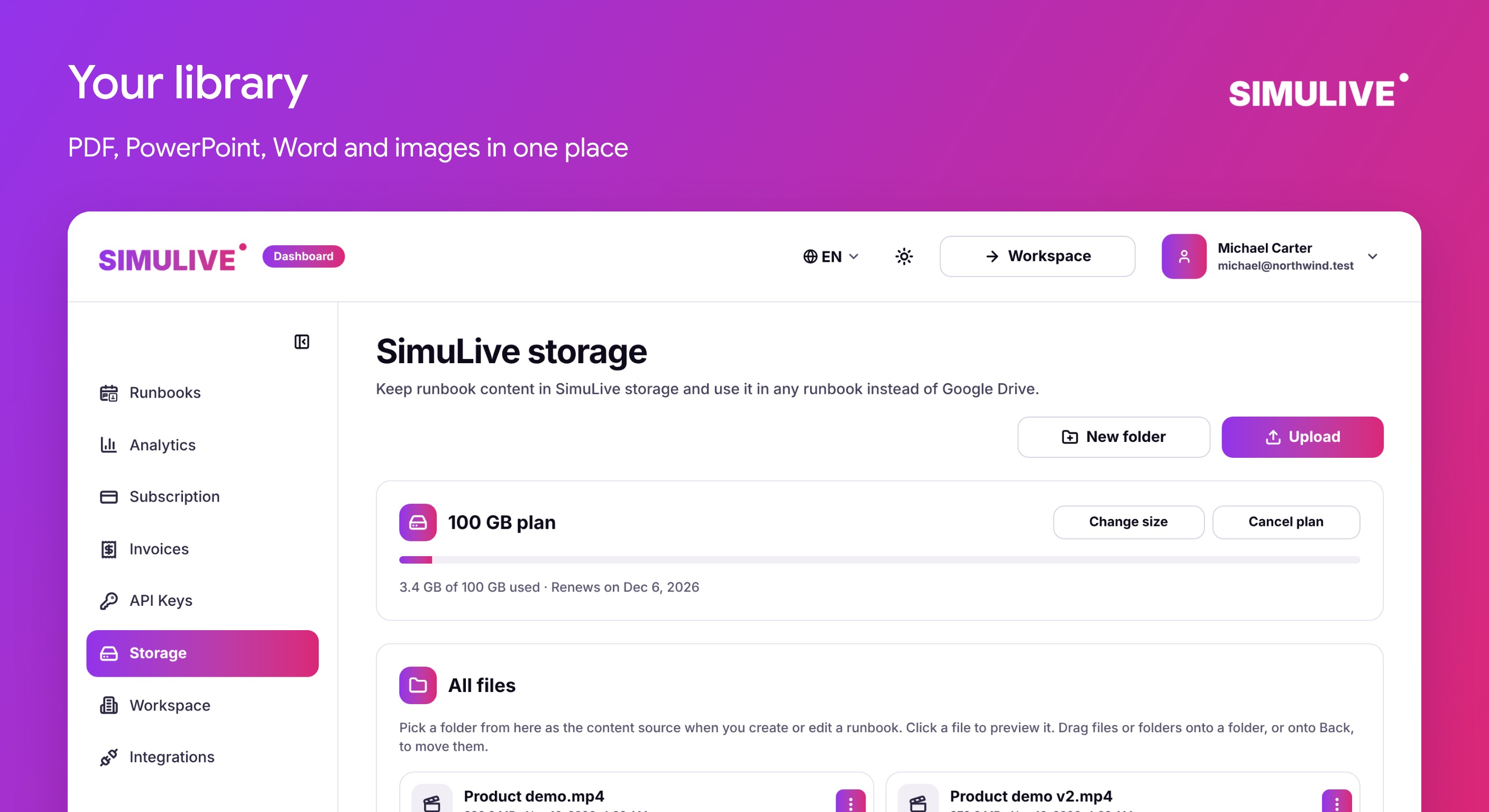
Slides and documents come from your SimuLive storage, or from the Google Drive folder of a runbook. You can show PDF, PowerPoint, Word and image files: .pdf, .pptx, .ppt, .docx, .doc, .odp, .odt, .rtf, .png, .jpg, .webp and .gif. From Google Drive you can also pick Google Slides and Google Docs.
Upload files once and use them in any runbook or series. Each runbook or series can hold up to 10 slides or documents.
Add Slides and Docs to a Runbook
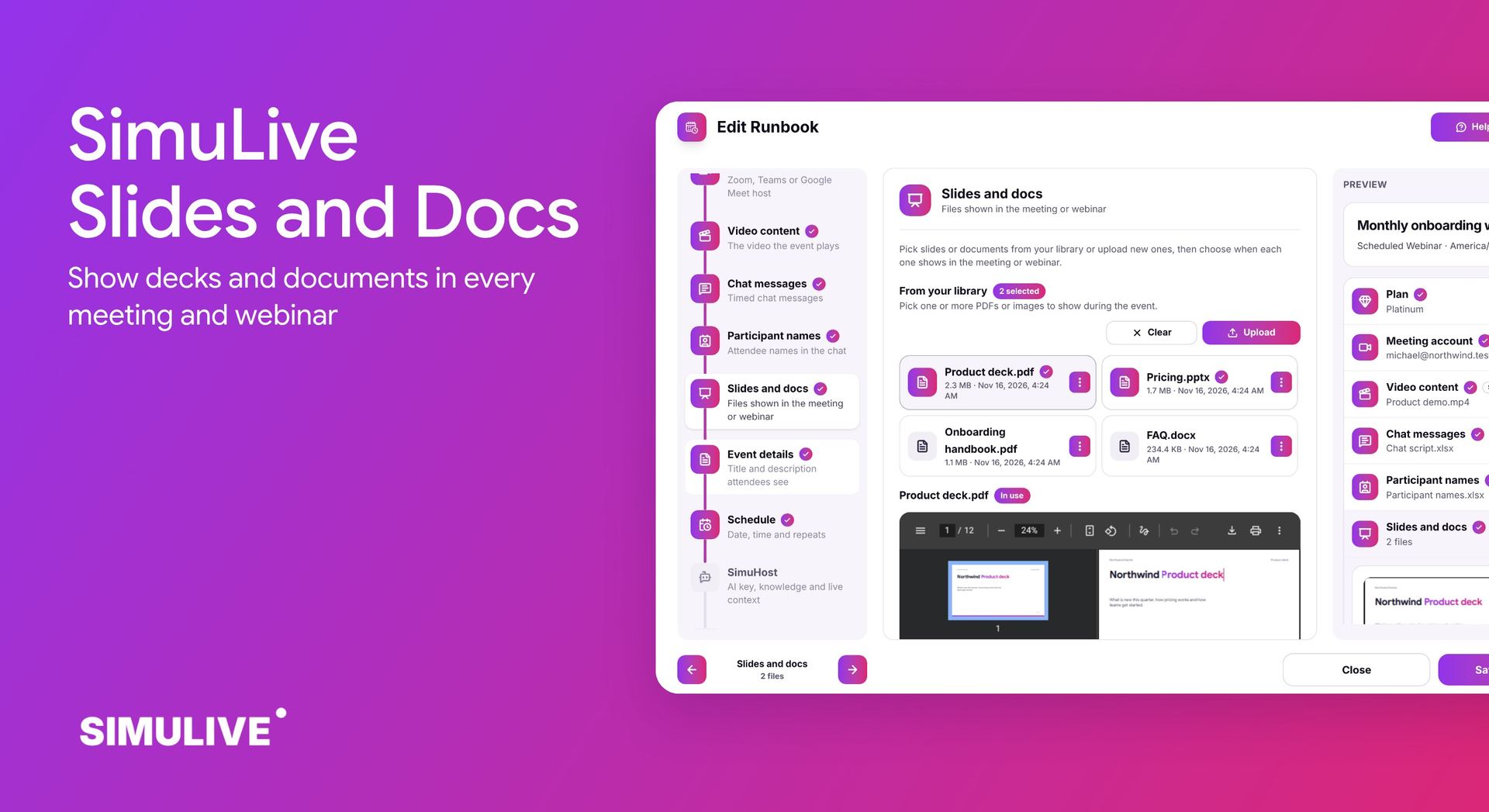
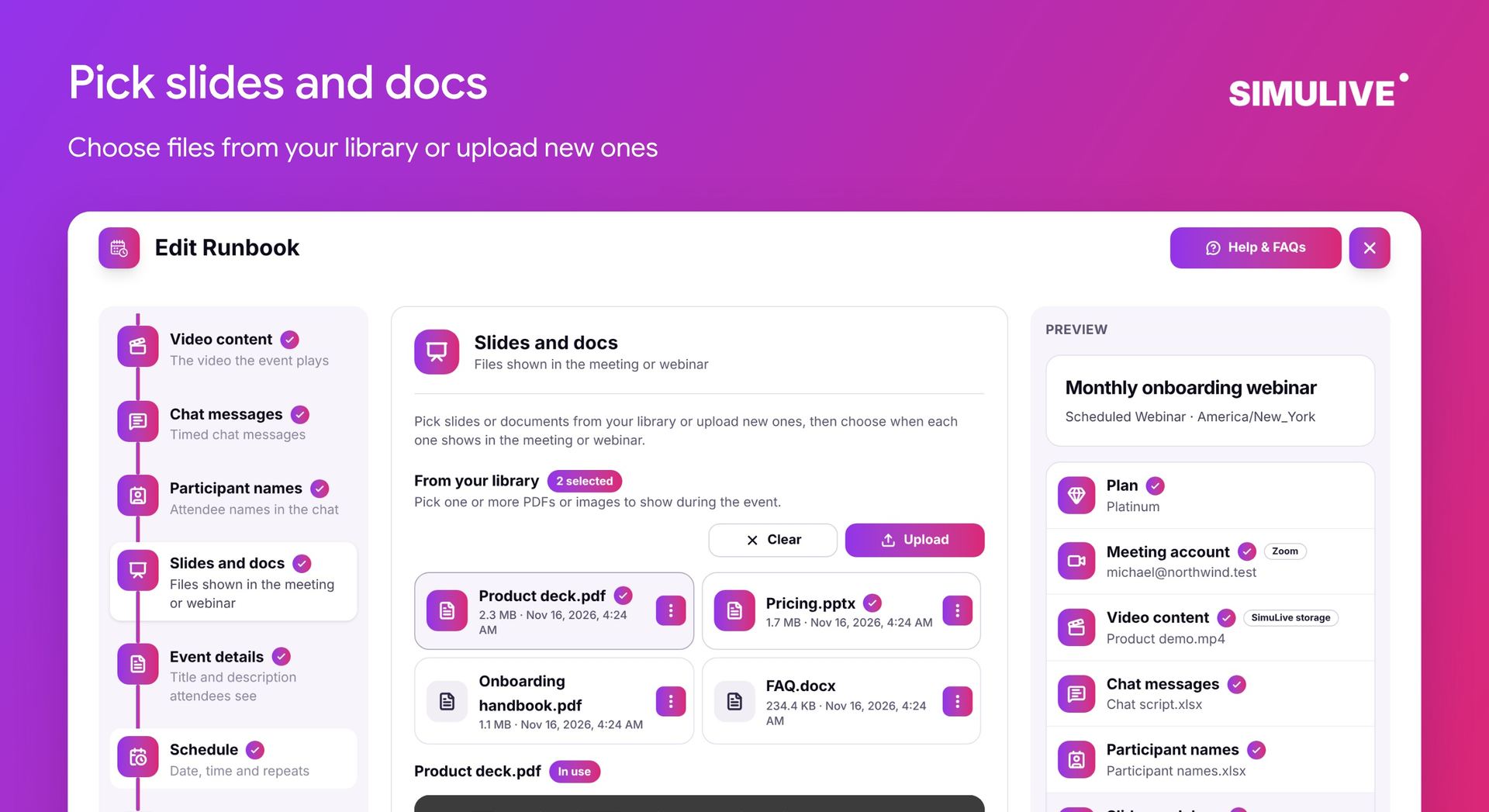
Open the runbook editor and go to Slides and docs. Pick one or more files from your library or upload new ones. Each selected file is marked, and the file in use shows a preview, so you can check every page before the event.
Slides and docs for runbooks use SimuLive storage or the Google Drive folder you pick on Video content.
Choose When Each File Is Shown
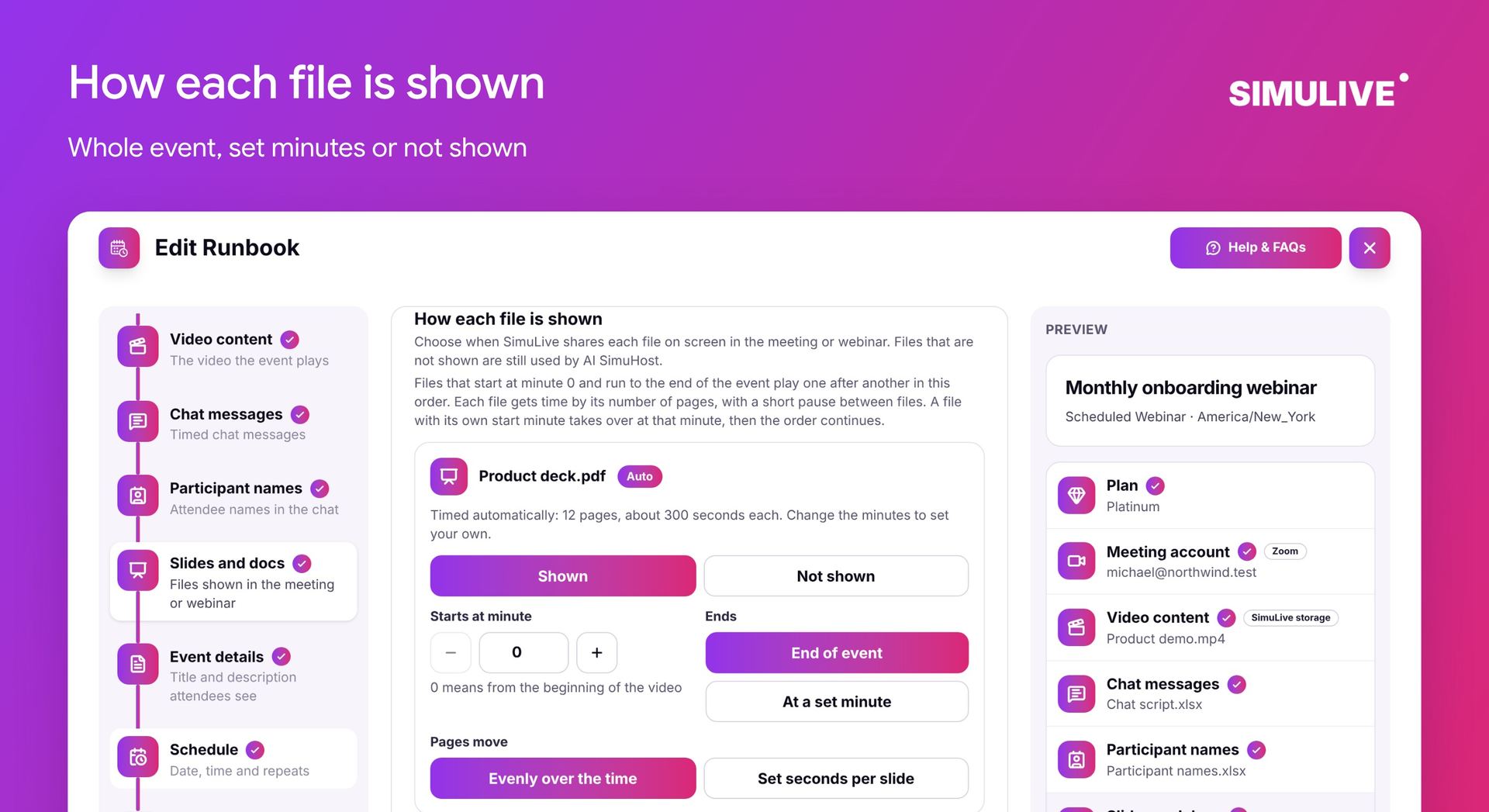
Under How each file is shown, set every file to Shown or Not shown. A shown file starts at a minute of the video, where 0 means the beginning, and ends at the end of the event or at a set minute.
Pages move evenly over the time, or at a set number of seconds per slide. Files that start at minute 0 and run to the end play one after another in your order, and each gets time by its number of pages, for example 12 pages at about 300 seconds each. A file with its own start minute takes over at that minute, then the order continues.
Slides and Docs in Workspace Series
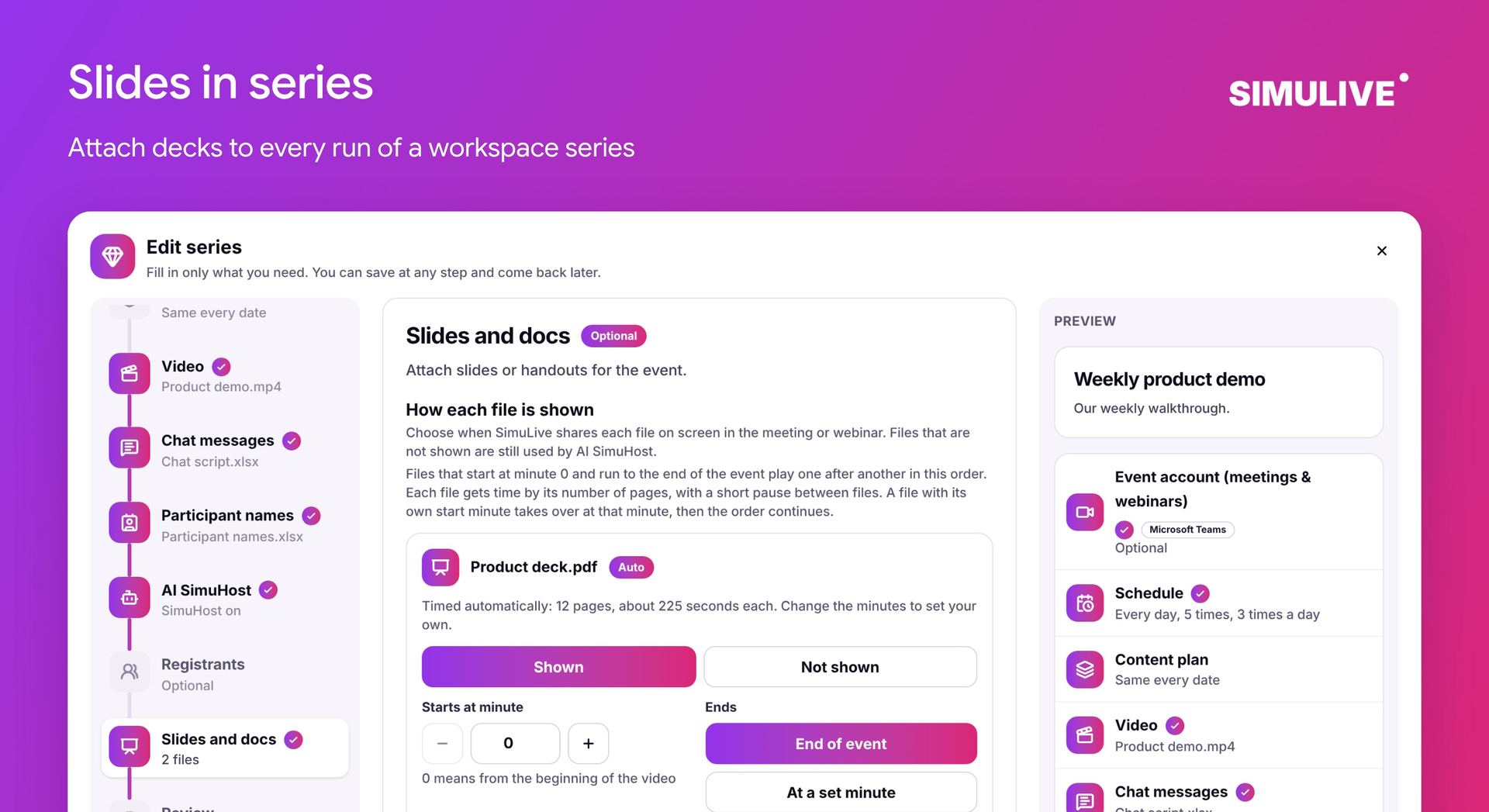
Workspace series have the same Slides and docs step. Attach decks once and every run of the series shows them on the same timing. With a content plan you can rotate sets or customize single dates, each with its own slides.
Files come from the series owner library in the workspace, so the whole team can reuse the same decks.
Steer Slides While the Event Runs
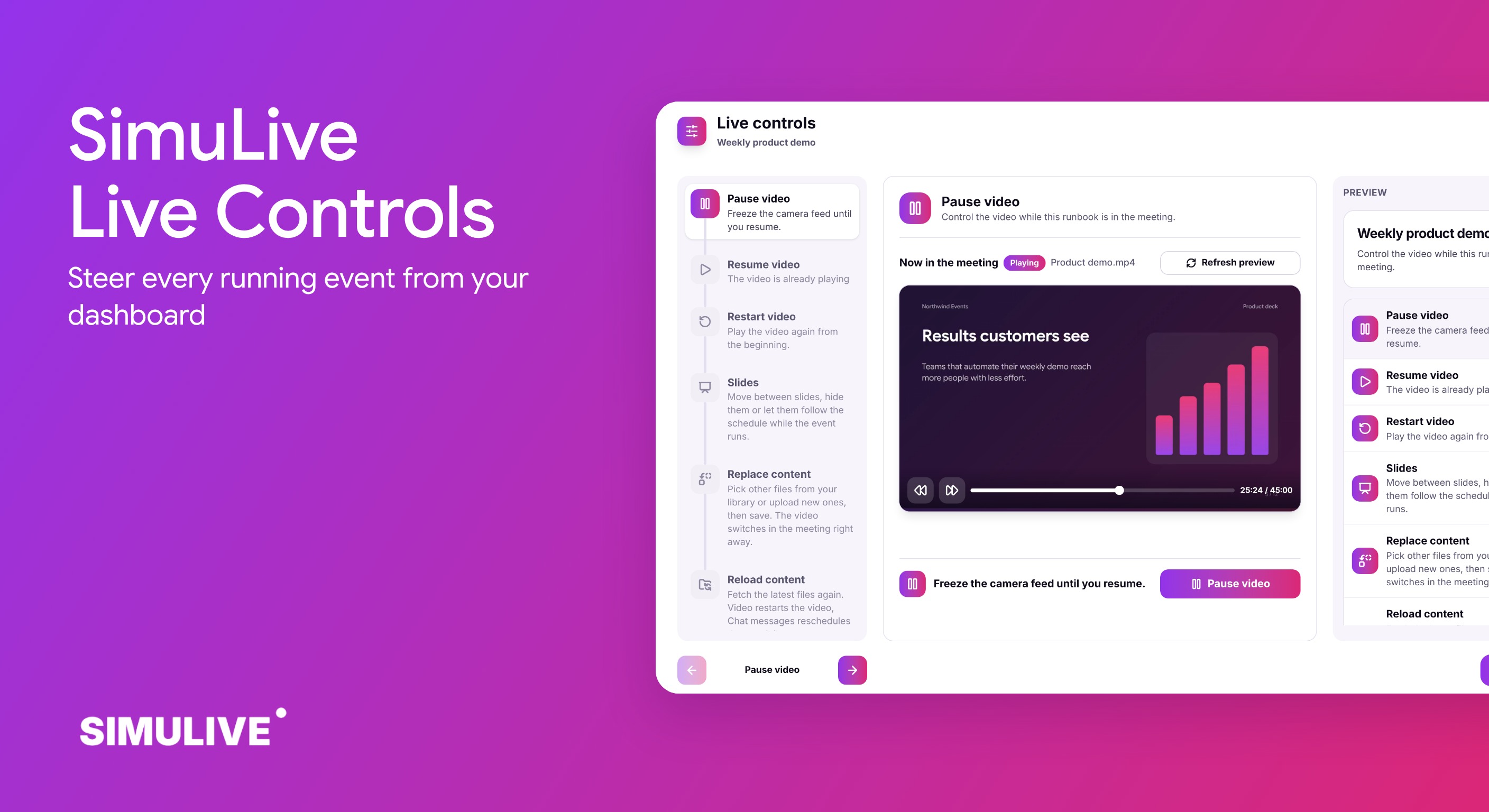
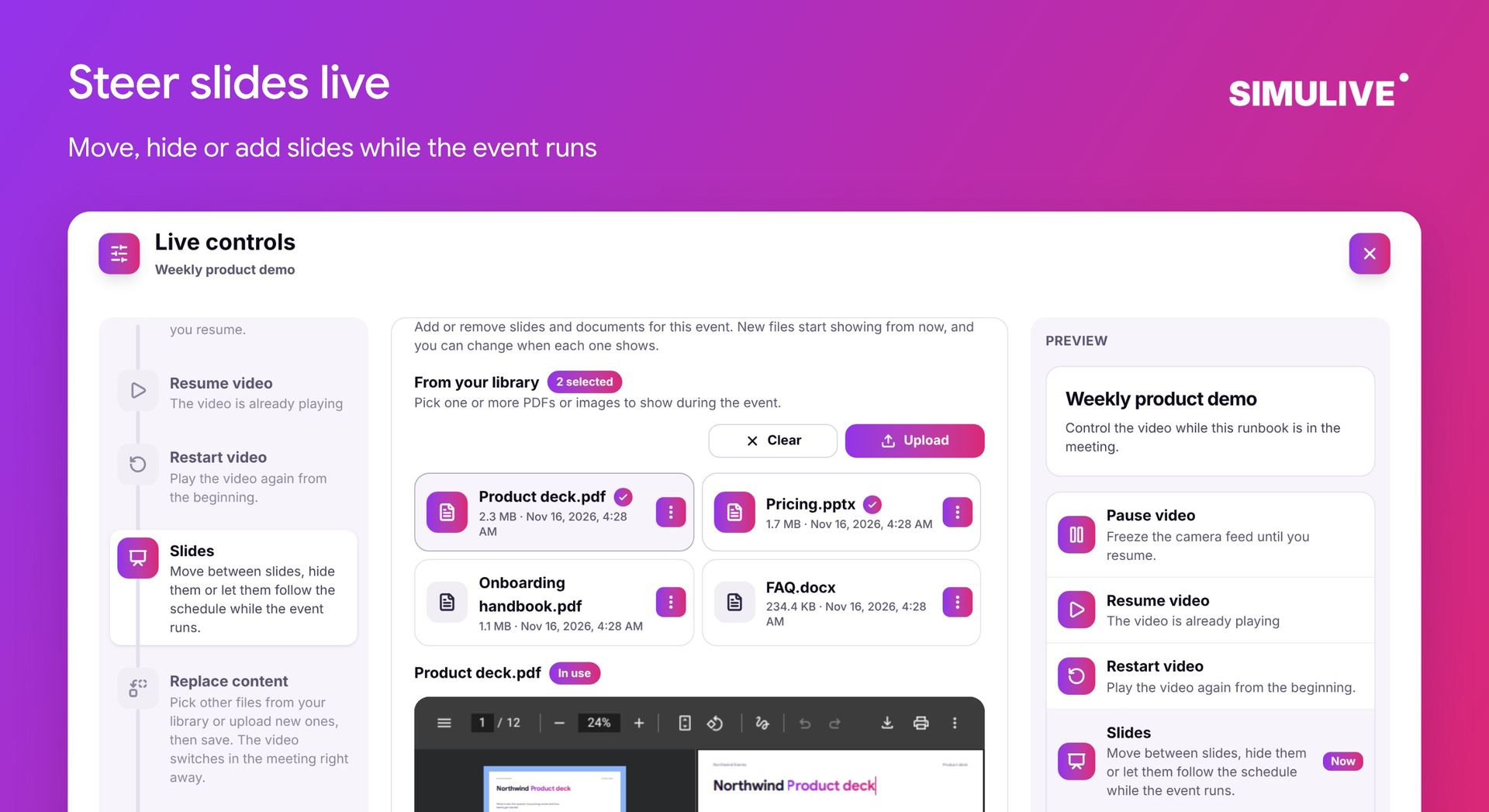
Live controls show the slide on screen right now and let you move to the previous or next slide, hide slides, or follow the schedule again. For runbooks you can also add or remove files mid event. New files start showing from now.
Read more in Live Controls: Steer Every Running Webinar and Meeting.
Plans
Slides and Docs are part of the Platinum and Diamond plans.
Platinum
Slides and documents in meetings and webinars, with AI SimuHost.
Diamond
Everything in Platinum, for high volume and continuous events.
See every plan on the pricing page.
How to Get Started
Upload your decks and documents to SimuLive storage, or add them to your Google Drive folder.
Create or edit a runbook on a Platinum or Diamond plan, or open a workspace series.
Go to Slides and docs and pick the files to show.
Under How each file is shown, set the start minute, the end and how pages move.
Save. The files are shared on screen when the event runs.
While it runs, use Live controls to move, hide or add slides.
Want every detail? The Slides and docs user manual walks through each setting.
Frequently Asked Questions
More questions?
View All FAQsConclusion
Slides and Docs turn a recorded talk into a full presentation: the right file on screen at the right minute, on every run, with nobody clicking through a deck.
Ready to add your first deck? Read the full Slides and docs user manual for a complete step by step walkthrough.
Put the Right Slide on Screen, Every Time
Slides and Docs come with the Platinum and Diamond plans for runbooks and workspace series.