SimuLive Live Controls
Steer Every Running Webinar and Meeting
SimuLive Team
Product and Marketing
An automated event runs on its own, and that is the point. But sometimes you want a hand on the wheel: the host is late, a question needs the pricing slide now, or the wrong video went out.
Live controls give you that hand. While a runbook or a workspace series is live in Zoom, Microsoft Teams or Google Meet, you can watch what attendees see and change it from your dashboard: pause, jump, restart, reload, swap files and move slides, without leaving the page or stopping the event.
What You Will Learn
What are Live Controls?
Live controls are a set of commands for a runbook that is already in its meeting or webinar. They talk to the running event directly, so every change shows up for attendees in a few seconds, and nothing has to be rebuilt or rescheduled.
They work for meetings and webinars on Zoom, Microsoft Teams and Google Meet, for runbooks in your personal dashboard and for every run of a workspace series.
Who Live Controls Are For
Anyone who wants the reliability of an automated event with the flexibility of a live one.
Marketing teams
Hold the video for a minute while a guest joins, then pick up exactly where it stopped.
Sales teams
Jump to the pricing part of a demo when the room asks for it, or put the pricing slide on screen.
Trainers
Restart a lesson for a group that joined late, or swap in the updated recording right away.
Event managers
Fix a wrong file in the middle of an event instead of stopping and rescheduling it.
Open Live Controls
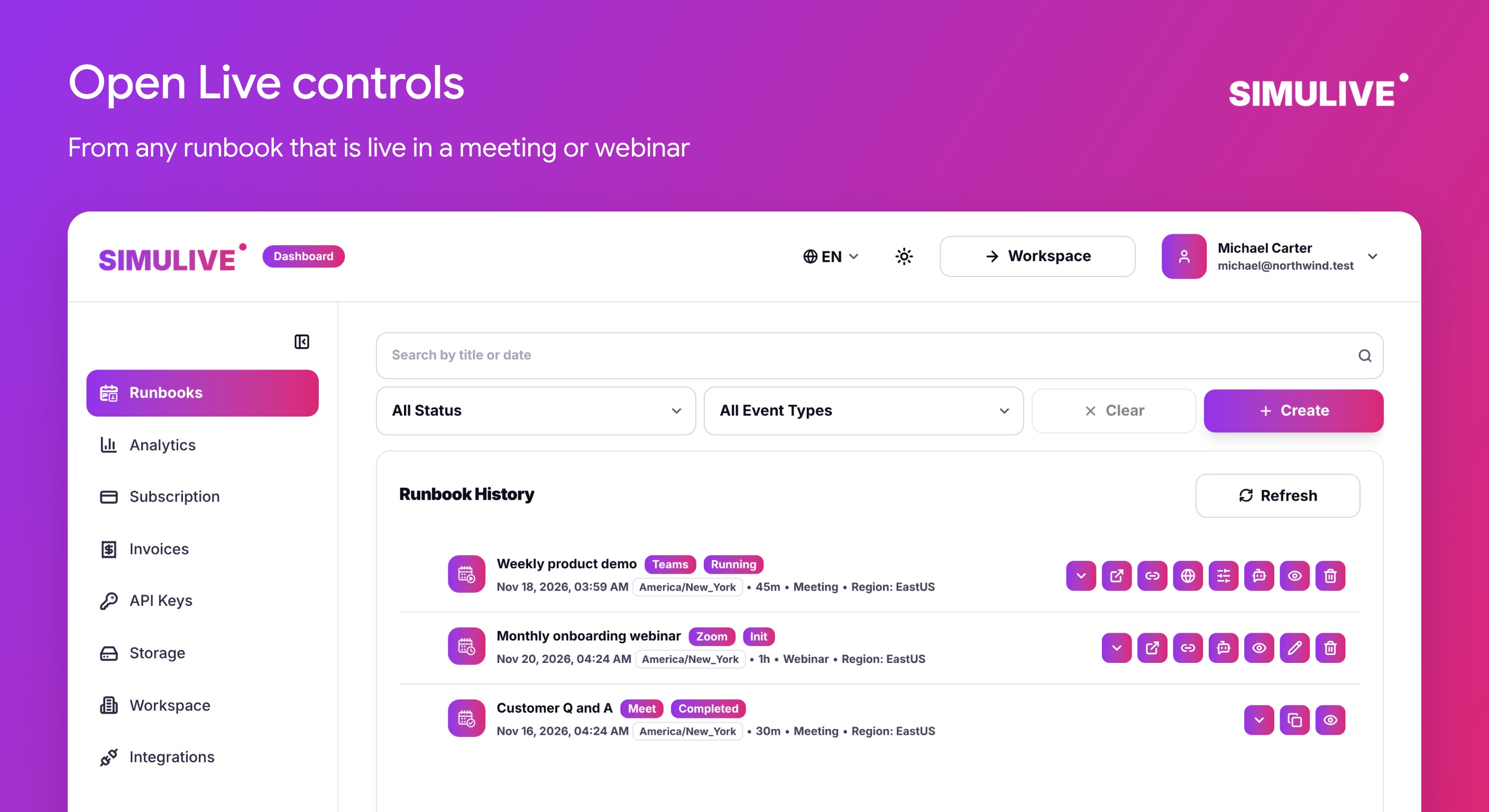
Live controls appear on a runbook as soon as it is live in its meeting or webinar. In your dashboard, open Runbooks and select the Live controls button on the running runbook. In a workspace, open Series and use the same button on the run that is live.
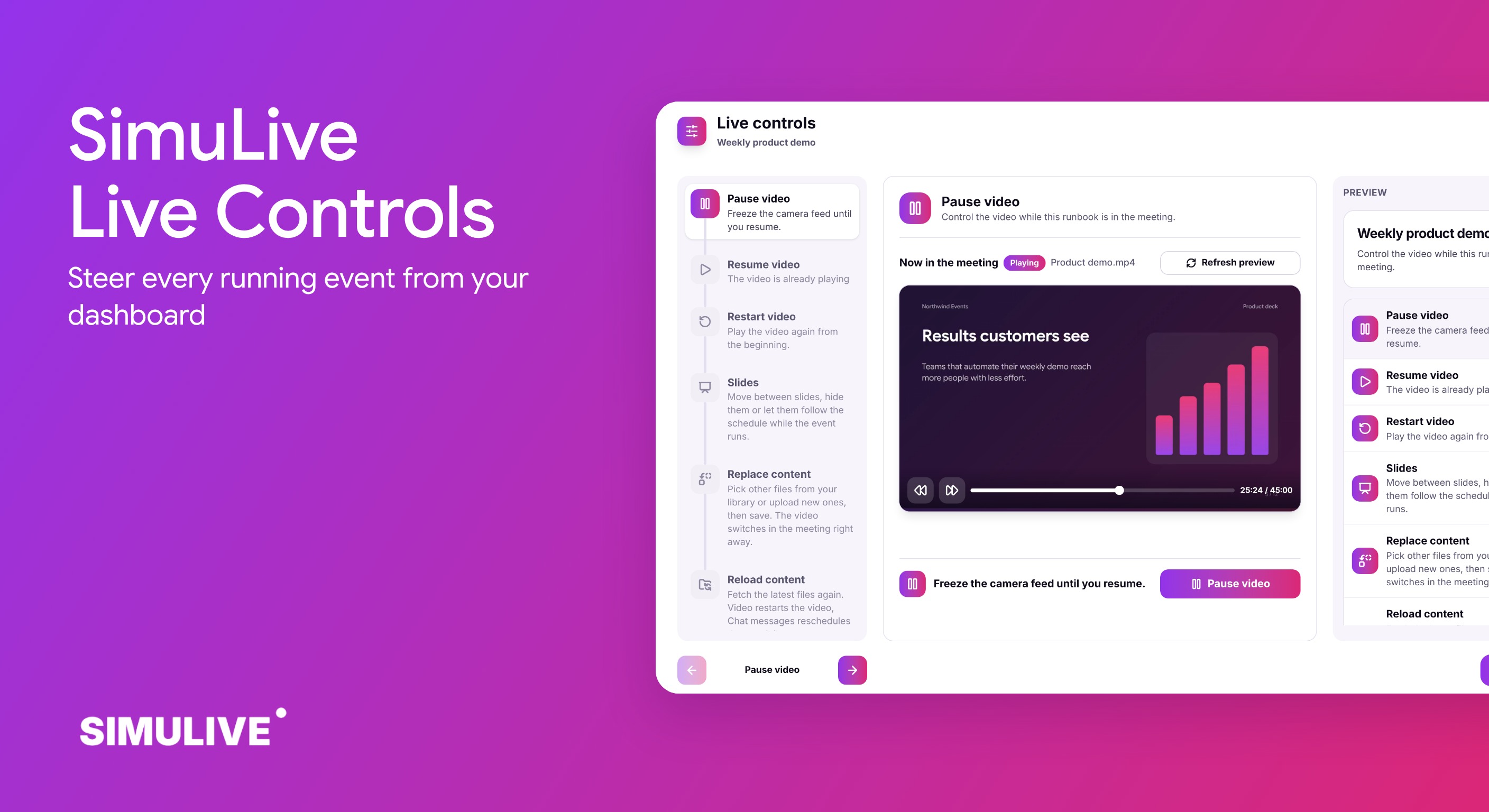
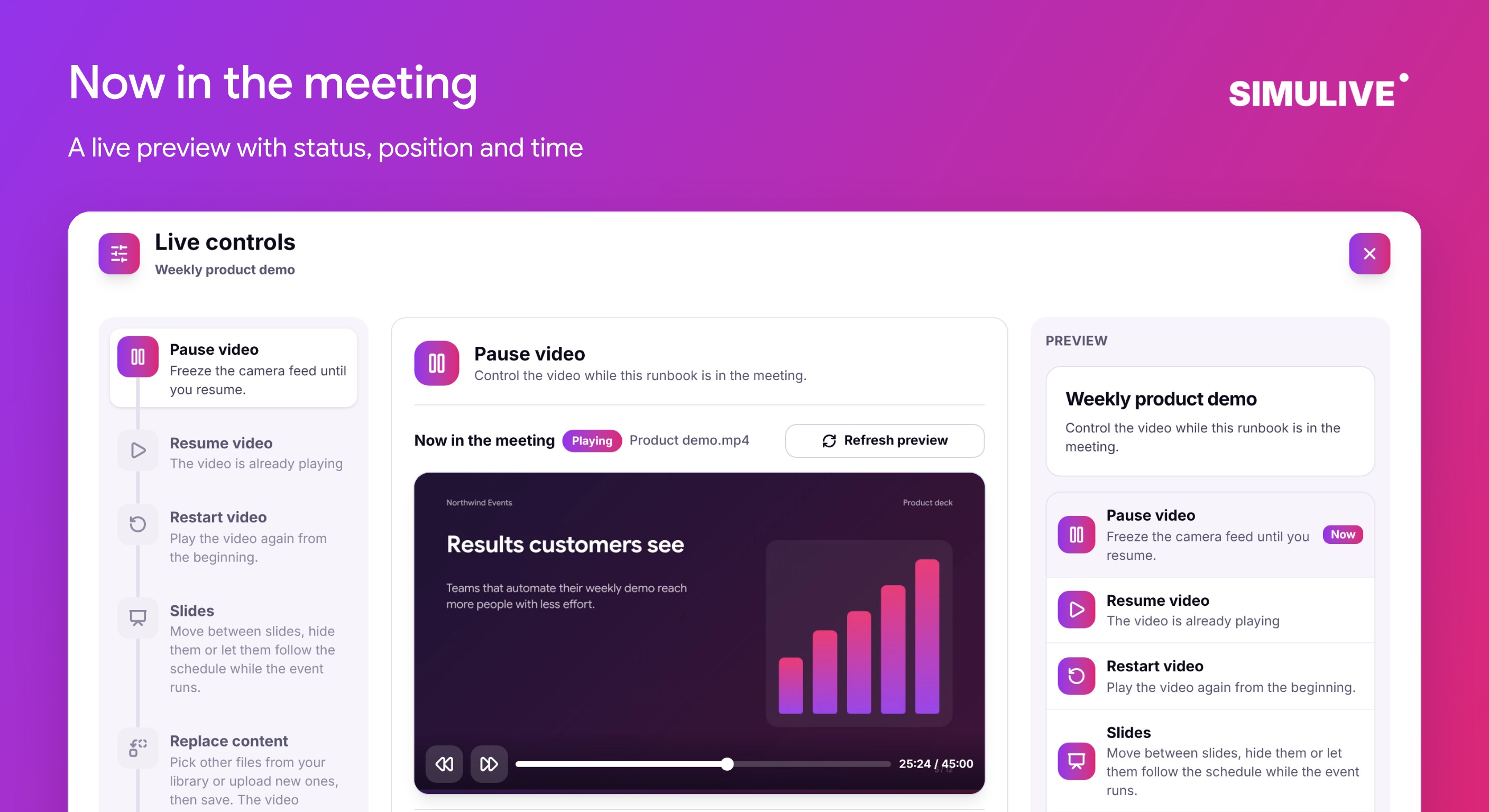
The dialog has one step for each command on the left, the command itself in the middle and a summary of everything you can do on the right.
See What Attendees See
Every video step starts with Now in the meeting: a live preview of the video, whether it is playing or paused, the file name and the exact position, for example 25:24 of 45:00. The preview updates every few seconds, and Refresh preview checks again at any time.
The preview shows here once the video is streaming in the meeting or webinar, so you always know the state of the event before you change it.
Pause, Seek and Restart
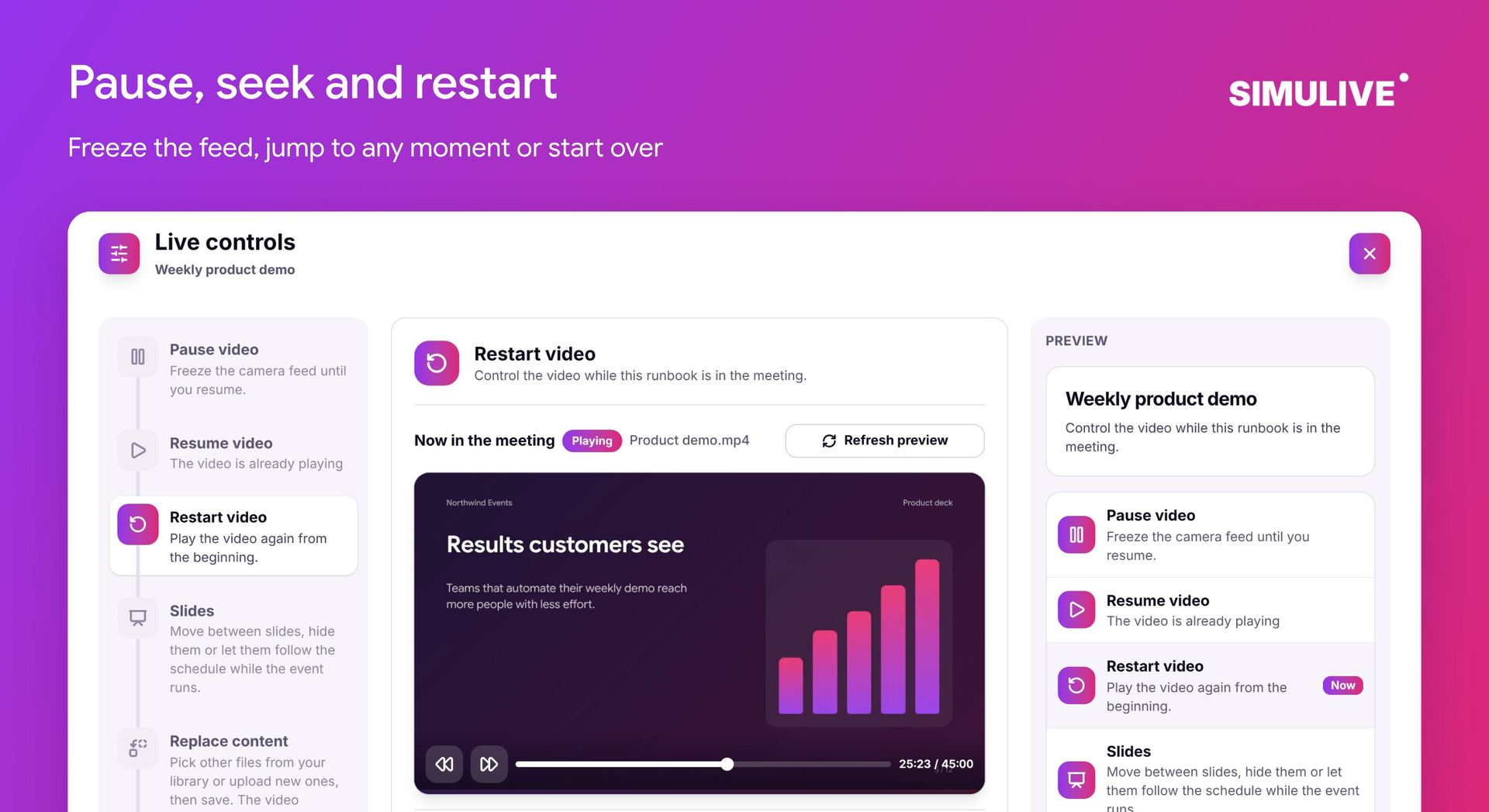
Pause video freezes the camera feed until you resume, and Resume video continues from the same moment. Use the timeline in the preview to jump back or forward 10 seconds, or pick a point on it and go straight to that time.
Restart video plays the video again from the very beginning, which is useful when a group joins late or the event needs a clean start.
Reload Content
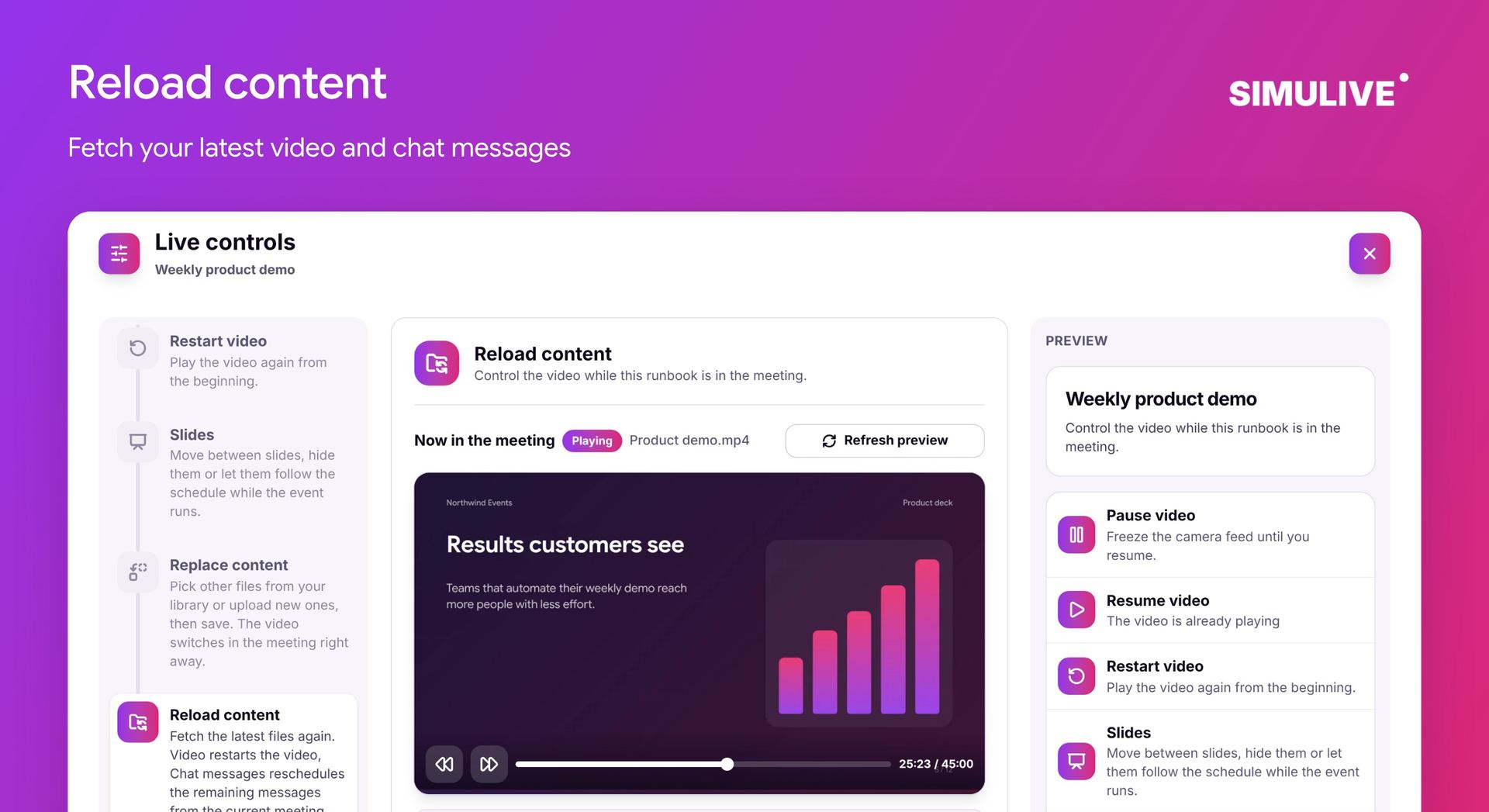
Reload content fetches your latest files again. Choose Video to restart the video with the newest file, Chat messages to reschedule the remaining messages from the current meeting time, or All to do both.
This is the way to apply changes for runbooks that read from a content folder or a Google Drive folder: update the files there, then press Reload content.
Replace Content
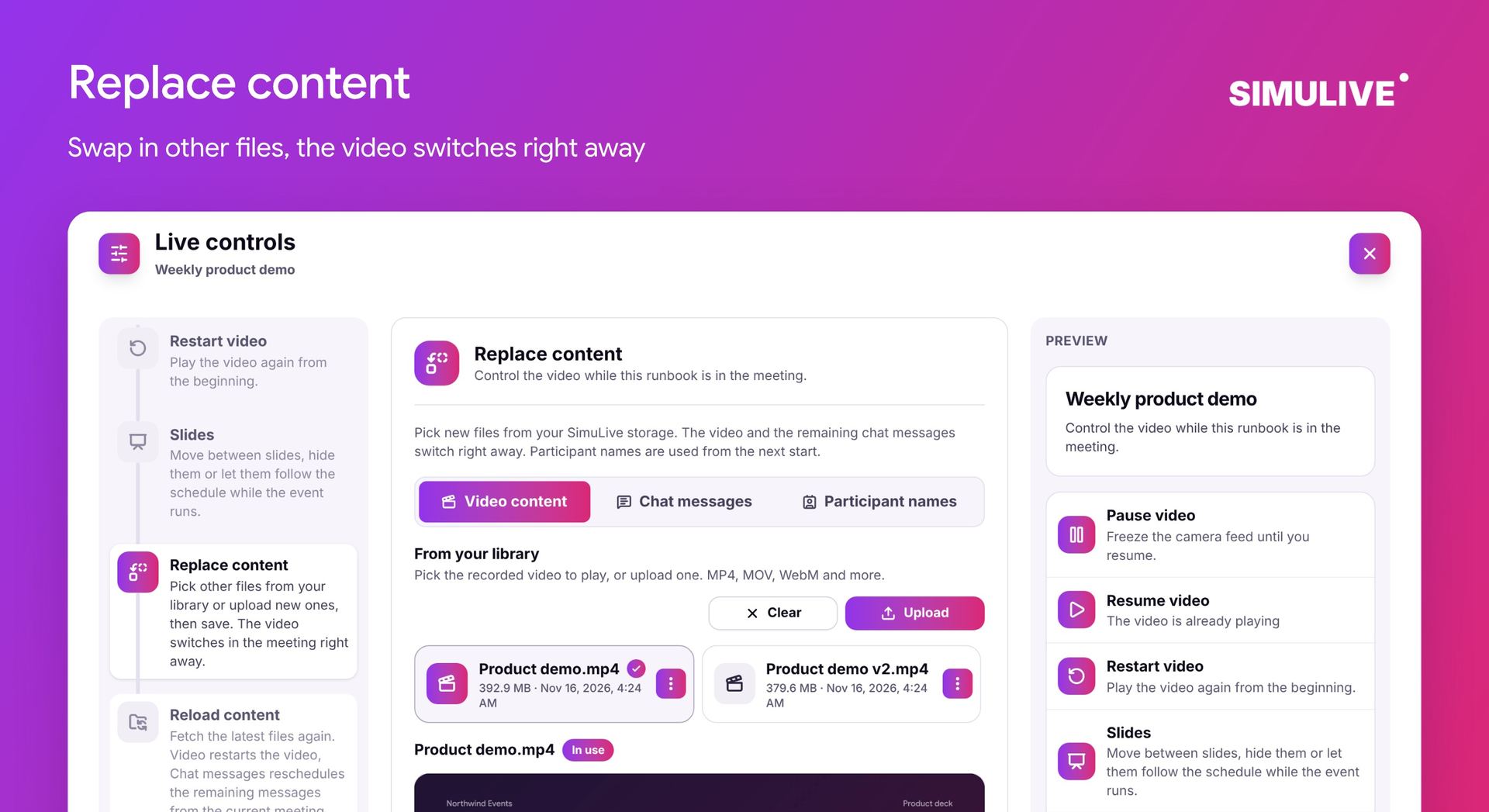
Replace content lets you pick other files from your SimuLive storage, or upload new ones, then save. The video and the remaining chat messages switch right away. Participant names are used from the next start.
Each file shows a preview before you save, and the file in use is marked, so you always know what attendees will see next.
Steer Your Slides
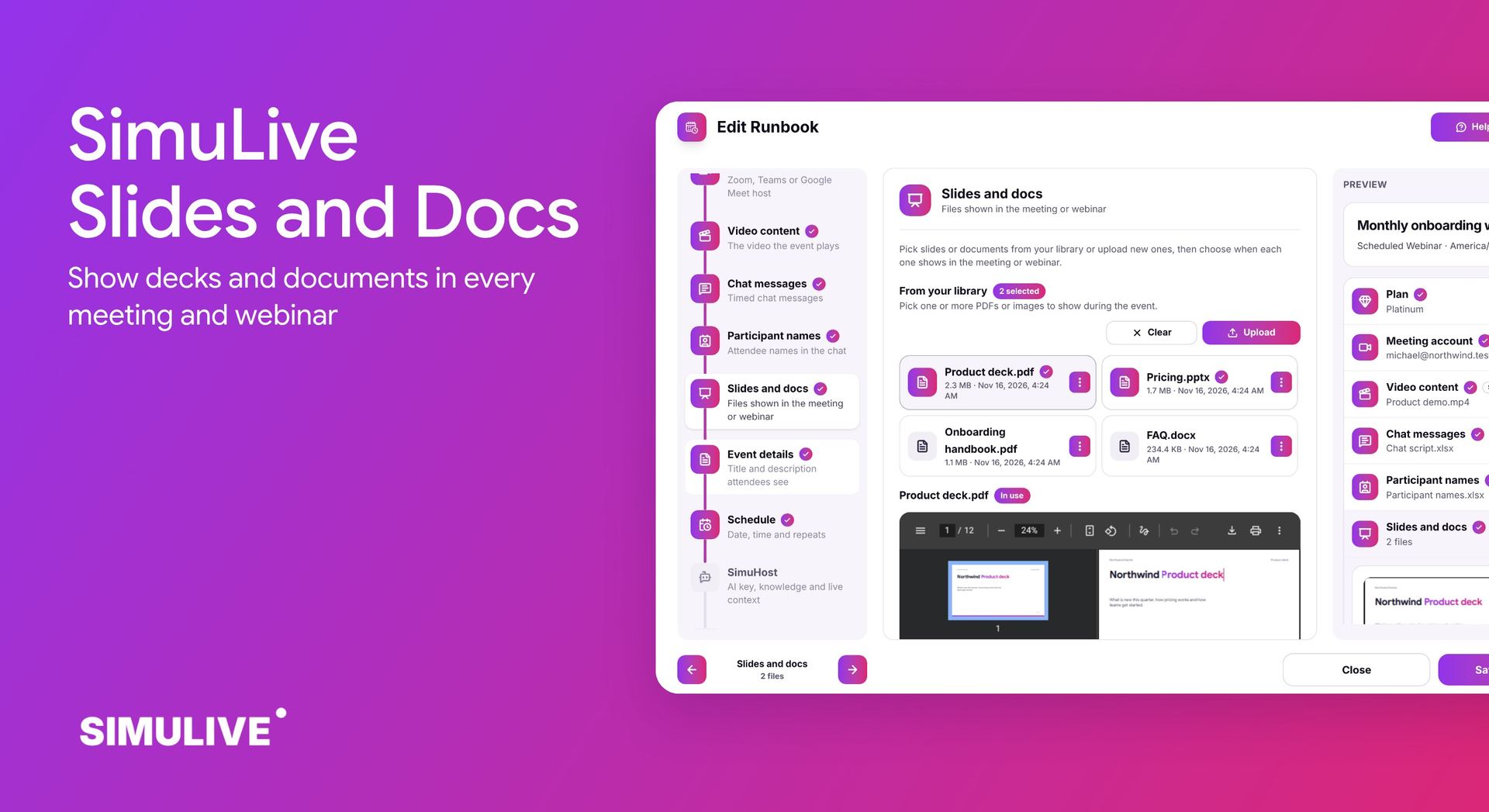
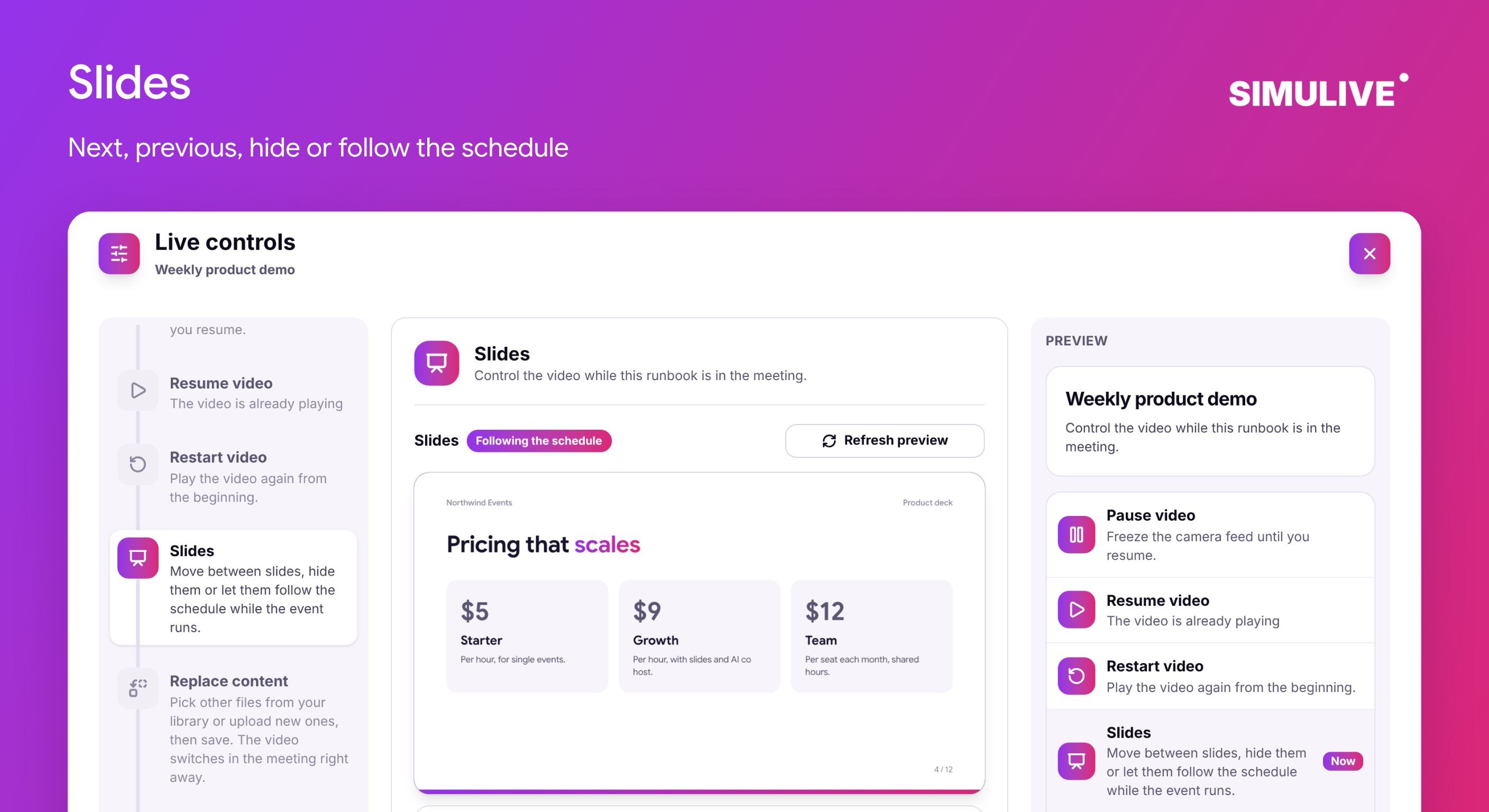
If the event shows slides or documents, the Slides step shows the slide on screen right now, for example slide 4 of 12. Use Previous slide and Next slide to move by hand, Hide slides to take them off screen, and Follow schedule to go back to the set times.
Moving or hiding slides takes over from the schedule until you choose Follow schedule. You can also add or remove slides and documents mid event. New files start showing from now, and you can change when each one shows.
Live Controls for Workspace Series
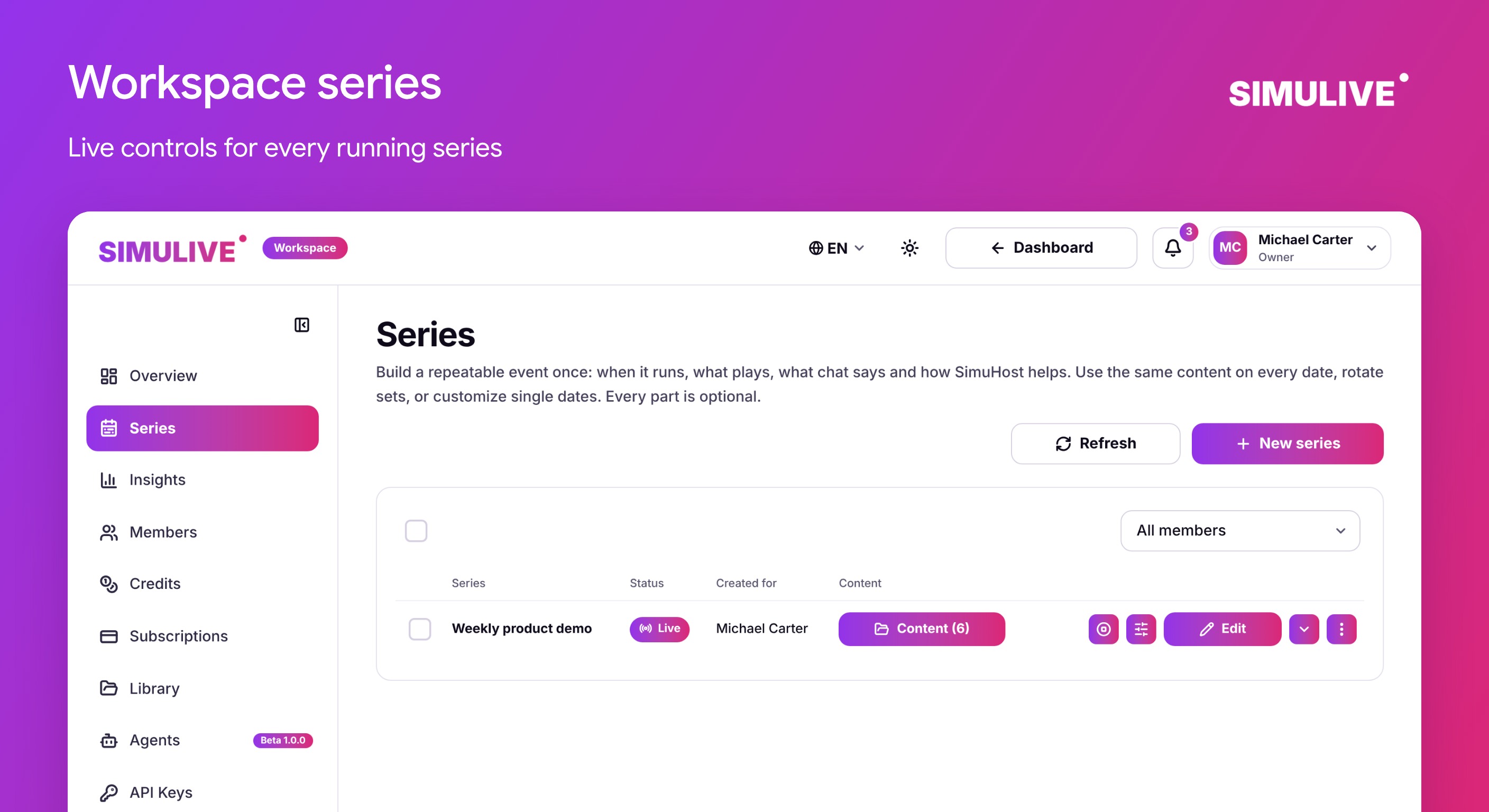
Every run of a workspace series has the same controls while it is live. Pause, seek, restart and reload work exactly as they do for a runbook.
Series content lives in the series itself, so Replace content shows the files of that run read only. To change a file for a series, edit the series and then use Reload content. Slides for series runs are set in the series as well.
Plans
Live controls are part of every plan, so every runbook and series can use them.
Silver and Gold
Pause, resume, seek, restart, reload and replace content.
Platinum and Diamond
Everything above, plus slides and documents you can move, hide and add while the event runs.
See every plan on the pricing page.
How to Get Started
Create a runbook or a workspace series as usual and let it start.
When it is live, open Runbooks in your dashboard or Series in your workspace.
Select the Live controls button on the running runbook or run.
Check Now in the meeting to see what attendees see.
Pick a step on the left, for example Pause video or Replace content, and run it.
Close the dialog at any time. The event keeps running with your changes.
Want every detail? The Live controls user manual covers each step for runbooks and series.
Frequently Asked Questions
More questions?
View All FAQsConclusion
Live controls keep the reliability of an automated event and add the flexibility of a live one. Watch what attendees see, pause or jump when the moment calls for it, and fix content without stopping the event.
Ready to try it? Read the full Live controls user manual for a complete step by step walkthrough.
Stay in Charge of Every Event
Live controls come with every SimuLive plan. Start your next runbook and steer it while it runs.