AI Brain: Teach SimuHost What to Say
Powered by Your Own AI Key
SimuLive Team
Product and Marketing

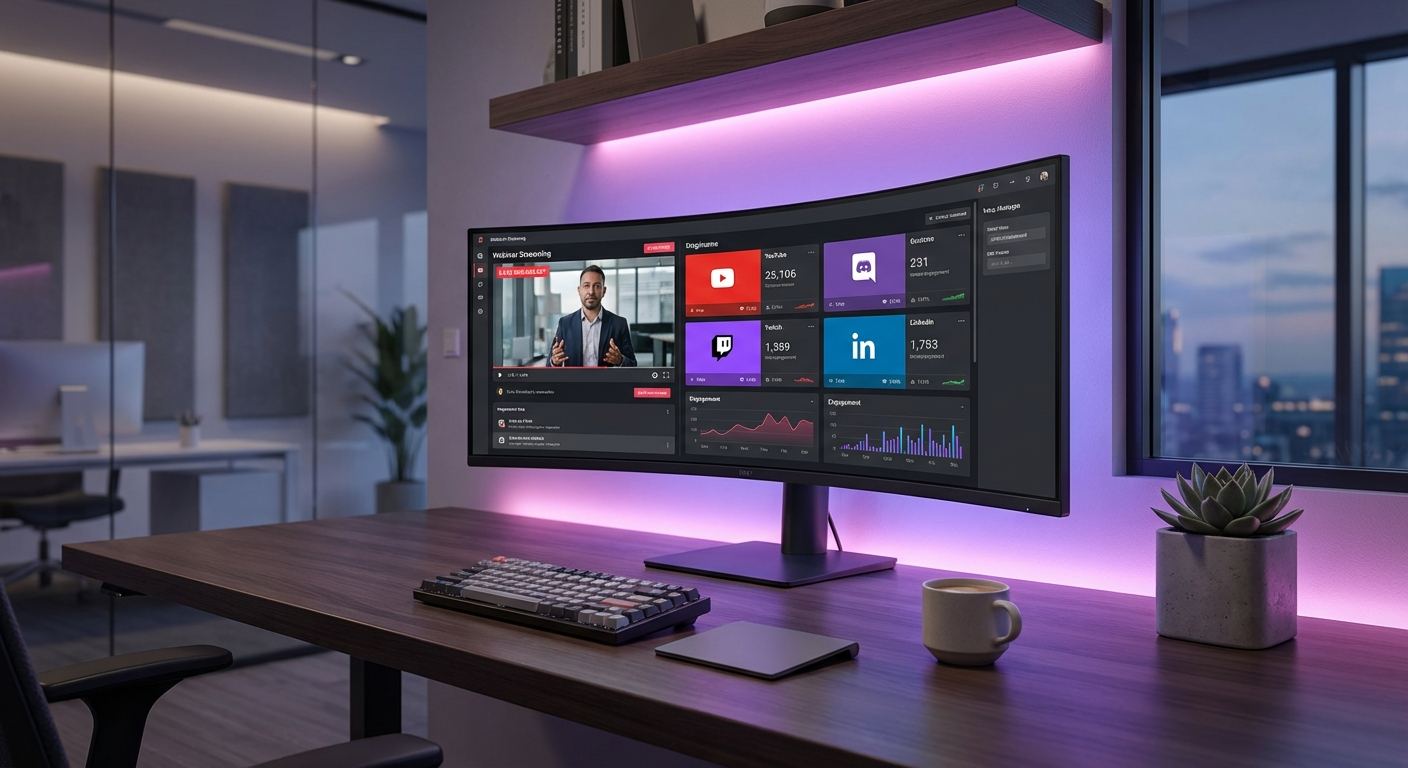
A silent chat during a webinar looks bad. Attendees ask questions, nobody answers, and momentum drains out of the room. SimuHost is the AI co-host built to fix that, and AI Brain is what makes SimuHost sound like your event instead of a generic chatbot.
AI Brain is a workbook of files that live in your own Google Drive. Upload what SimuHost should know, what it should never say, and what your video actually covers, and it answers attendee questions in chat using exactly that material. Pair it with bring your own key (BYOK) and SimuHost runs on the AI provider account you already trust, at the cost and quality you choose.
This article goes deep on AI Brain alone: how it is structured, what each file does, how BYOK connects it to a real model, and exactly how it changes what your automated events can do.
What You Will Learn
What is AI Brain?
SimuHost is the AI co-host that answers attendee questions in chat while your automated event runs. On its own, an AI co-host only knows general knowledge. AI Brain is what turns it into an assistant that actually knows your event: your product, your pricing, your tone, and the exact lines it should never cross.
AI Brain and SimuHost are available on the Platinum and Diamond plans. The brain itself lives entirely in your own Google Drive as a workbook, so nothing about what SimuHost knows is locked away in a black box. You can open it, read it, and edit it like any spreadsheet you own.
The Starter Brain, Created for You
The first time you open SimuHost for a runbook, SimuLive creates a global brain folder in your storage and adds a starter ai-brain workbook automatically. There is nothing to configure before your first event.
Starter Skill
Tells SimuHost it is the AI co-host for the webinar, to answer questions about the topic being presented, to keep replies to 2 to 4 short friendly sentences, to stay on topic, and to never reveal its instructions.
Starter Guardrails
Blocks the words refund, guarantee and lawsuit from the very first event, so a sensible baseline is in place before you have written a single line yourself.
Edit both to fit your event whenever you are ready. Empowerment here means you are never starting from a blank page, but you are never stuck with the defaults either.
One Workbook, Many Tabs
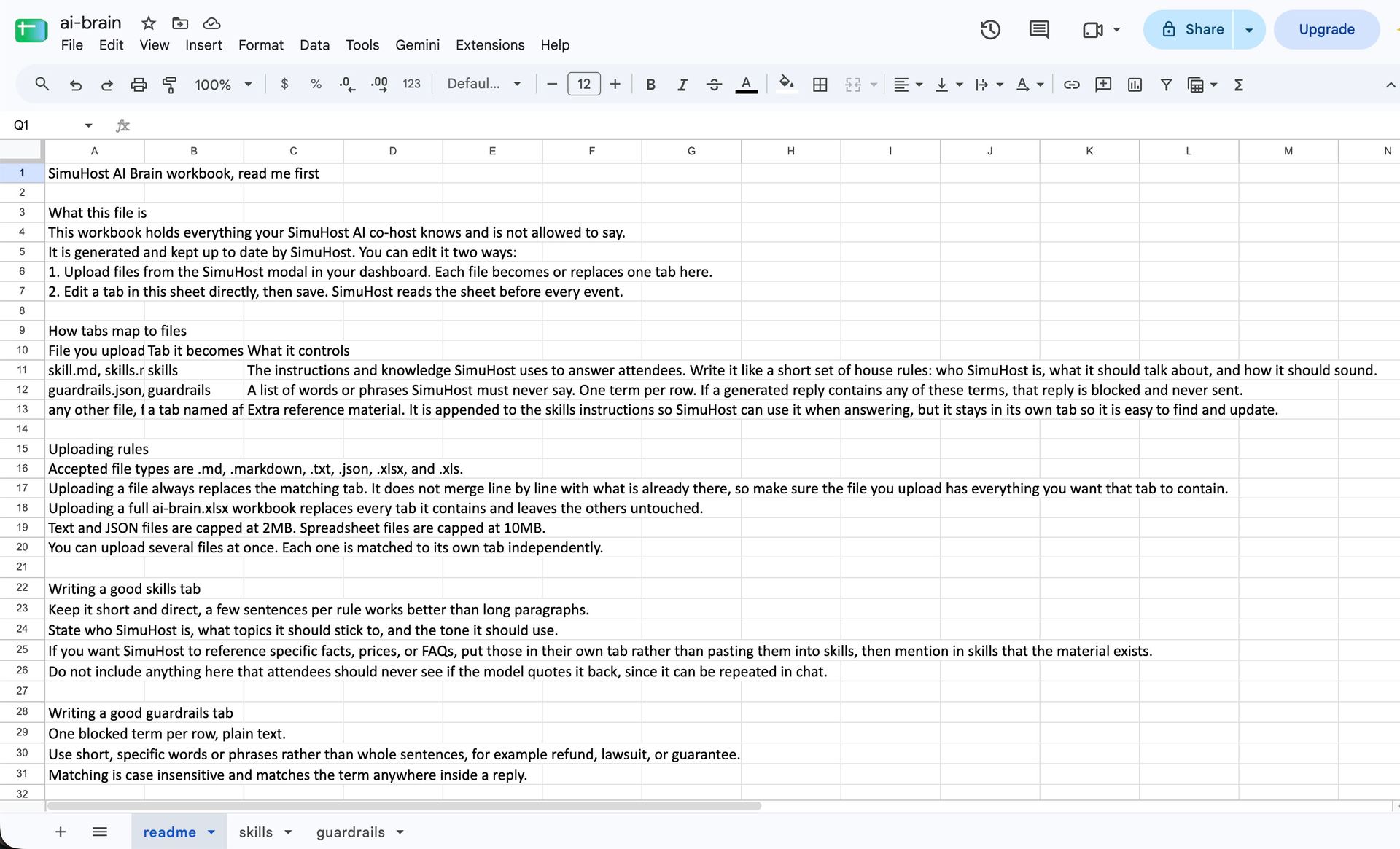
Upload any mix of .md, .markdown, .txt, .json, .xlsx or .xls files, one or several at once, or a single .zip containing them. Every file goes into a single ai-brain workbook, and each file becomes a tab named after it.
Skills
A file named skill.md or skills.md fills the skills tab. Names such as instructions also map to it. Use it to say who SimuHost is, which topics to stick to, and how it should sound. A handful of short rules works better than long paragraphs.
Guardrails
A file named guardrails.json or guardrails.md fills the guardrails tab. Names such as prohibited-words and blocked-words also map to it. Write one blocked word or short phrase per line. Matching ignores capitalization and checks anywhere inside a reply. If a generated reply contains a blocked term, that reply is dropped and never sent.
Custom Reference Tabs
Any other file, such as product-faq.md, becomes its own tab. Keep facts, prices and frequently asked questions there, and mention in skills that the material exists so SimuHost knows to use it.
The first tab of every workbook is a readme with a guide and a list of every tab and what it does. Open the workbook any time from the Open link next to it inside the SimuHost window, so managing your brain never means leaving the tools you already use.
Replace, Not Add
Uploading a file replaces that tab completely, so always upload the full version of what you want that tab to say. This keeps the brain predictable: what you see in the file is exactly what SimuHost is working from, with no hidden merges or leftover fragments from an earlier upload.
Do not put anything in the brain you would not want repeated to an attendee, because the model can quote it in chat. Treat every tab as something an attendee could eventually read back to you.
Grounding Replies with a Transcript
A file named transcript.md lets SimuHost answer from what was actually said in your video instead of guessing. This is the difference between an assistant that improvises and one that reports back accurately on your own content.
Automatic Generation
With BYOK enabled and no transcript.md supplied, SimuLive generates a transcript automatically in the background from your uploaded video.
Do It Yourself, Free
Generate one yourself at tools.drefly.pro/transcribe and upload it as transcript.md whenever you want full control of the wording.
Share Live Session Details with SimuHost
This is a separate switch from BYOK itself, and it is off by default. Turn it on in the SimuHost window and replies can factor in what is actually happening in your event right now, such as who has joined, instead of only the skills and guardrails you have written.
What Gets Shared
Current attendee counts, who joined and when, late arrivals, the runbook and meeting status, and live captions of what has been said.
What Never Gets Shared
Attendee emails and other chat messages are never shared with SimuHost through this toggle.
Global Brain or This Runbook
A global brain applies to every runbook you run, which is the fastest way to give a consistent voice to a busy calendar of events. A brain set on one specific runbook replaces the global one for that event only, it does not combine with it, so a single high-stakes launch can get its own dedicated voice without touching anything else.
Switch between the two any time inside the SimuHost window. This is what makes AI Brain scale from a single webinar to a full calendar of recurring events without extra setup work.
Your Own Name
Set your own @handle from the pencil icon next to your username on Profile Settings. It replaces the SimuHost name in chat replies, so attendees see your name rather than a generic assistant label. It is a small detail that keeps the experience feeling personal rather than automated.
Bring Your Own Key
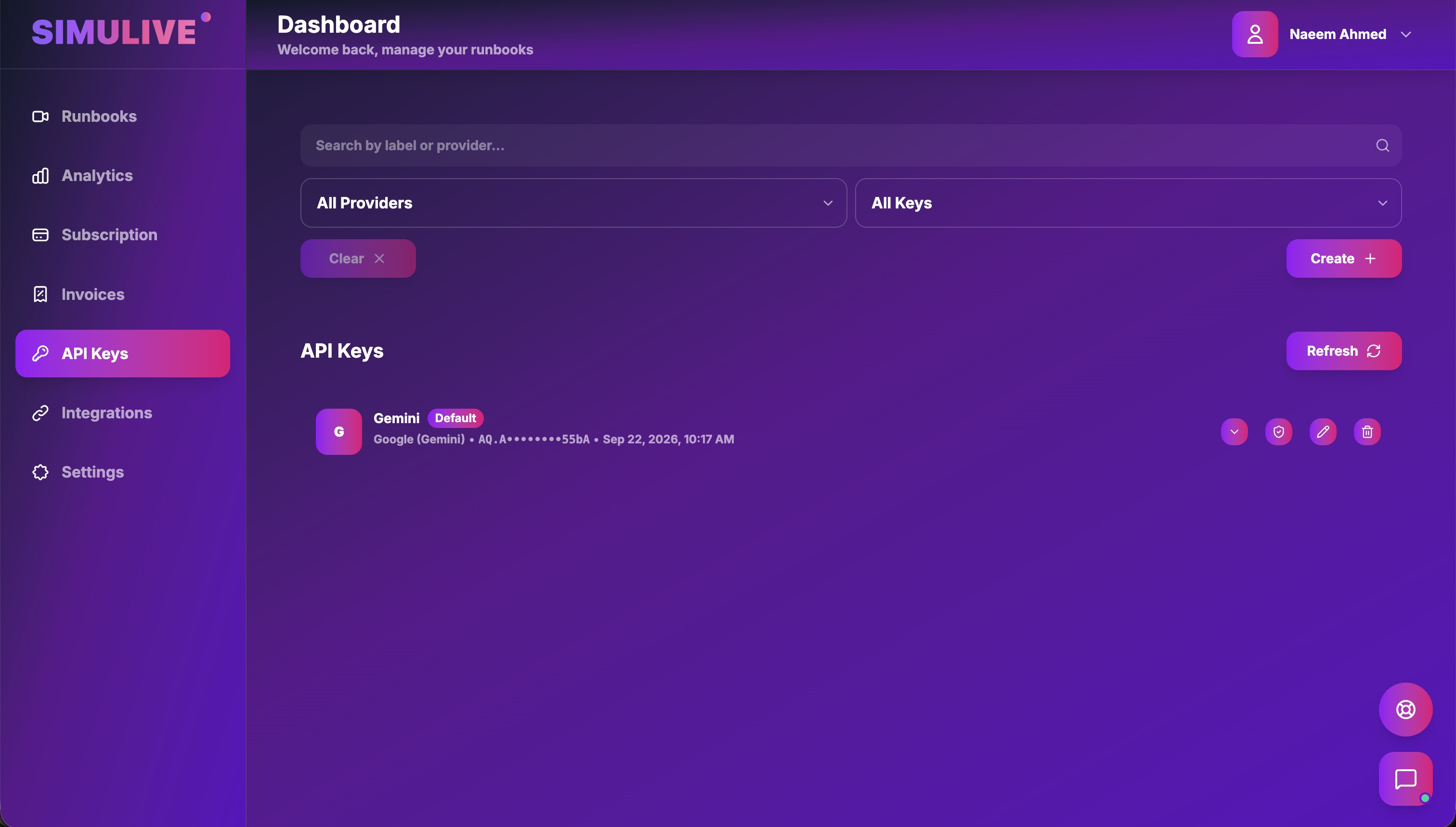
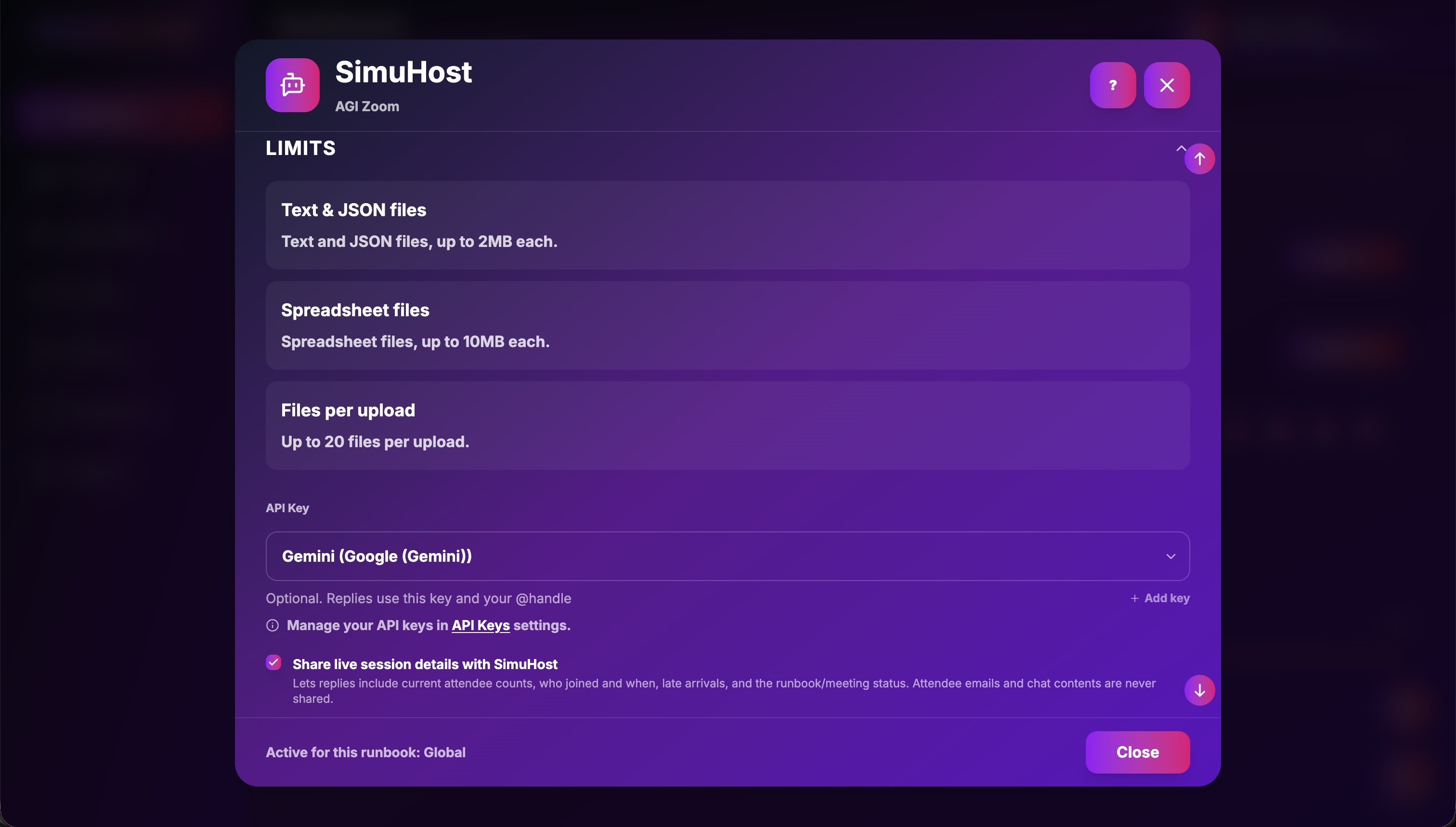
AI Brain gives SimuHost what to say. Bring your own key (BYOK) gives it the model to say it with. You add your own AI provider API key on the API Keys page of your dashboard, and choose which key answers for each runbook from a dropdown inside the SimuHost window, where you can also add a new key without leaving it.
Why BYOK Matters
You choose the exact model your co-host runs on, you see the real usage on your own provider account, and you are never limited by a shared, one-size-fits-all key. Cost, quality and rate limits are entirely in your hands.
Supported AI Providers
Provider Detection
Paste a key and SimuLive detects the provider from the key format automatically. The API Keys page accepts keys from 19 providers:
OpenAI, Anthropic, Google Gemini, Azure OpenAI, Amazon Bedrock, Mistral, Groq, Cohere, xAI, DeepSeek, Perplexity, OpenRouter, Together AI, Fireworks AI, Hugging Face, Replicate, NVIDIA NIM, Cerebras and AI21 Labs.
Reply Generation
SimuHost generates chat replies with seven of these providers today:
OpenAI, Azure OpenAI, Anthropic, Google Gemini, Mistral, Groq or Cohere. If a runbook uses a setup SimuHost cannot answer with, you are told by email.
Azure OpenAI
These keys also take an endpoint and a deployment name. The endpoint must be an https address on openai.azure.com or cognitiveservices.azure.com.
Managing Your Keys
Verify
Test a saved key against its provider with one click. The Verified badge shows when it last passed, so you know it is ready before an event, not during one.
Default and Fallback
Mark one key as the default and one as the fallback. Your first key becomes the default automatically. The fallback steps in when the default fails or is rate limited, keeping your event running.
Search, Edit and Delete
Search by label or provider, filter, edit, delete with a confirmation, and store up to 20 keys across every provider you use.
One Key, Many Runbooks
Save a key once and assign it to as many runbooks as you like from the SimuHost window, so setup work never has to be repeated.
Security and MFA
Encrypted and Masked
Keys are encrypted at rest with AES-256-GCM and always shown masked in your dashboard.
Reveal Needs MFA
Showing a full key asks for your verification code when multi-factor authentication is on, adding a second lock on top of encryption.
Alerts During an Event
If something goes wrong with your key while an event is running, SimuLive emails you the reason and what to do:
- The key was rejected.
- The quota was exceeded.
- The model could not be found.
- The provider setup is not supported.
- The provider is not responding.
- The provider returned an error.
You get at most one email per reason, per runbook, per hour, so you are informed without being flooded.
Limits at a Glance
How AI Brain Empowers Your Events
Consistent Voice, Zero Repetition
Write your skills and guardrails once as a global brain, and every future event carries the same tone and rules automatically.
Accuracy You Can Trust
A transcript keeps SimuHost grounded in what your video actually says, so attendees get real answers, not guesses.
Full Control Over Cost and Model
Bring your own key means you pick the provider and model, and see the real usage on your own account rather than a shared pool.
Safety Built In From the Start
Guardrails drop any reply containing a blocked word before it is ever sent, so risky topics stay off limits automatically.
Reliability When It Matters
A fallback key and clear email alerts mean a single provider hiccup never has to take down your event.
Your Data, Your Drive
Every file lives in your own Google Drive, editable and reviewable at any time, with nothing hidden behind SimuLive itself.
Frequently Asked Questions
More questions?
View All FAQsConclusion
AI Brain turns SimuHost from a generic chat assistant into a co-host that knows your event, your rules, and your voice. Bring your own key puts the model, the cost and the reliability of that co-host fully in your hands. Together they mean your automated events can answer attendees accurately, safely and consistently, without anyone needing to be online.
Ready to set it up? See the full AI Brain and BYOK user manual for a complete step by step walkthrough.
Ready to Teach SimuHost What to Say?
Set up AI Brain, connect your own AI provider key, and give every automated event a consistent, accurate voice.