SimuLive Agents
Connect Claude, ChatGPT, Cursor and VS Code to Your Workspace
SimuLive Team
Product and Marketing
You already ask an AI app for help every day. Now it can help inside SimuLive too: check which series run this week, set up the next one, or pause a live demo while you take a question.
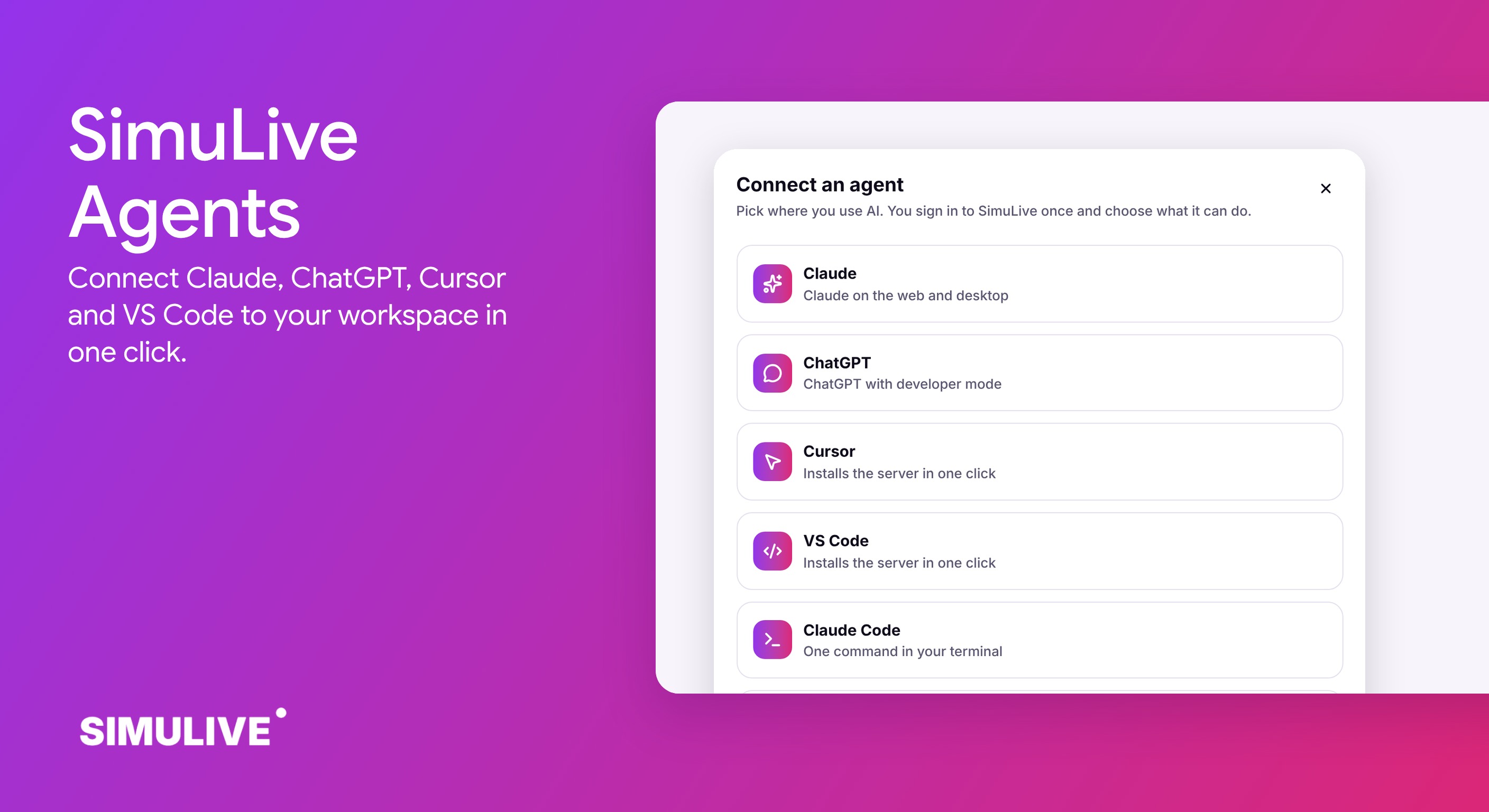
Agents connect the AI app you already use to your SimuLive workspace. Pick Claude, ChatGPT, Cursor, VS Code or Claude Code, sign in to SimuLive, choose what the app may do, and approve. There is no key to copy, and you can revoke the connection at any time. SimuLive does not provide the AI: you bring your own app and account.
What You Will Learn
What are Agents?
Agents give your AI app a safe way into your workspace. Once connected, you ask in plain words and the app uses SimuLive tools to read series, runbooks, the library, insights, requests and billing, or to make the changes you approve.
It works with any app that supports the Model Context Protocol, including Claude, ChatGPT, Cursor, VS Code and Claude Code. The app uses your own AI account, and SimuLive only shares what you allow.
Who Agents Are For
Anyone who runs events in a workspace and already works with an AI app.
Workspace owners
Ask how many registrants each series has, which runs need attention, or how many pool hours are left.
Event managers
Create or update a series, approve member requests and organize the library without clicking through every page.
Hosts
Pause, seek or move slides in a live run from the chat while you answer a question.
Developers
Connect scripts and bots with an agent key, limited to the areas they need.
Connect in One Click
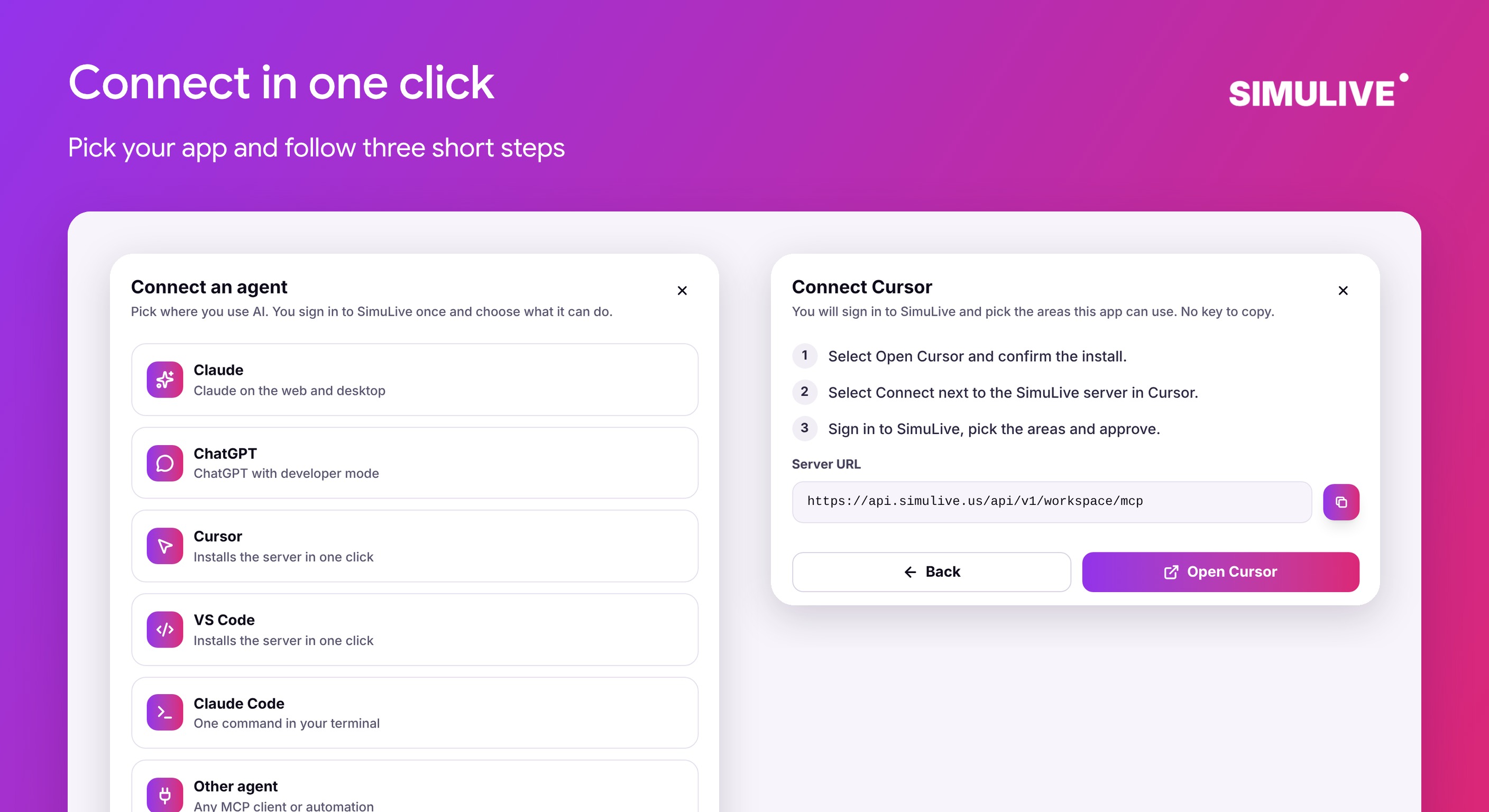
Open Agents in your workspace and select Connect. Pick your app and the window shows three short steps. Cursor and VS Code install the server with one click, Claude Code uses one command, and Claude and ChatGPT add it as a connector.
Other MCP clients can use the server URL directly. Clients that support sign-in open SimuLive for approval. Others can use an agent key.
Sign In and Approve
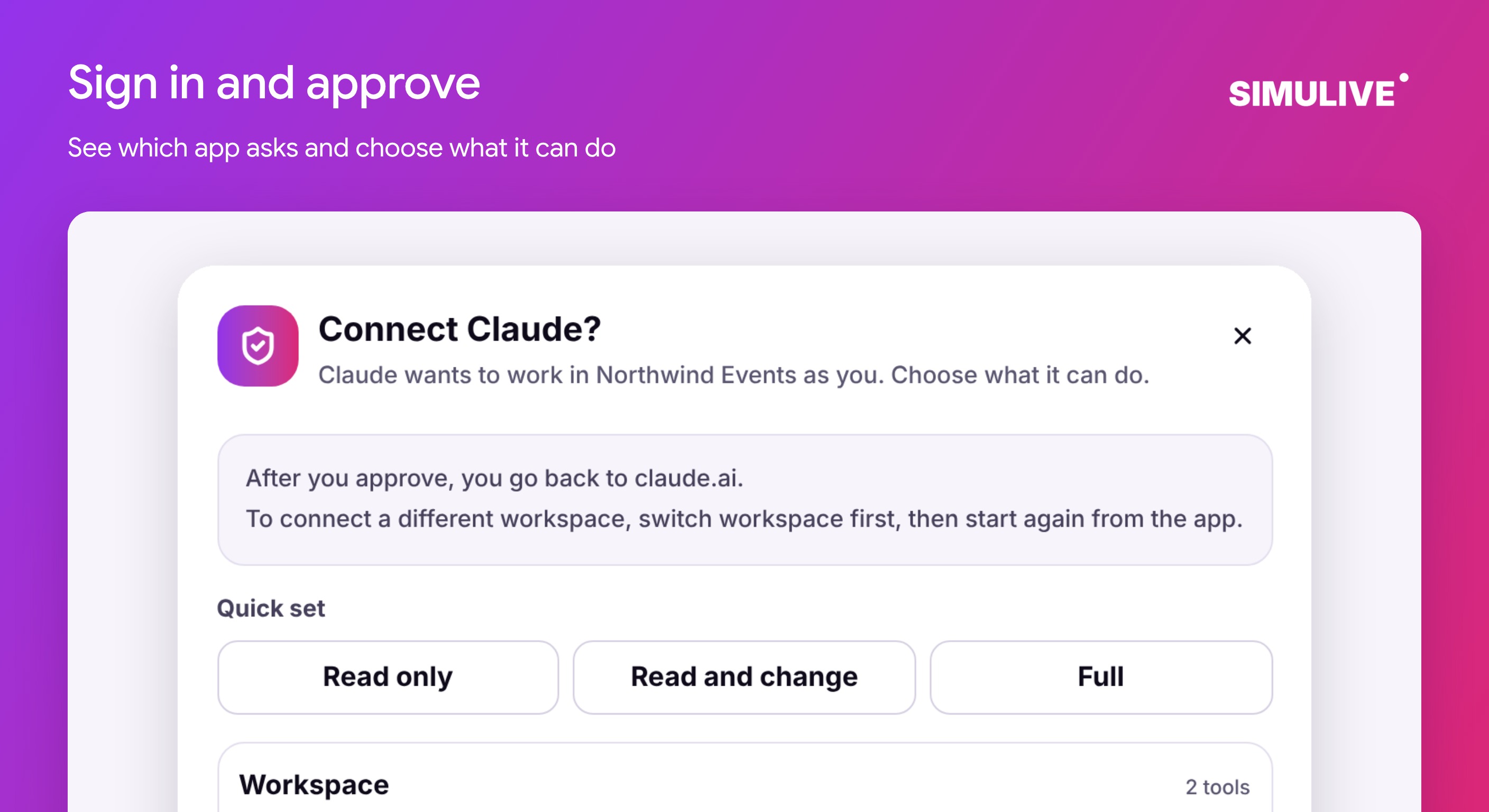
Your app opens SimuLive in the browser. You see the app name, where it returns to after approval, and the access it asks for. Choose the access, select Approve, and you are back in the app, connected.
Sign-in uses one-time codes bound to the app that asked, and tokens that refresh on their own and expire quickly. If an old token is ever reused, SimuLive cuts the whole connection off.
Choose Access by Area
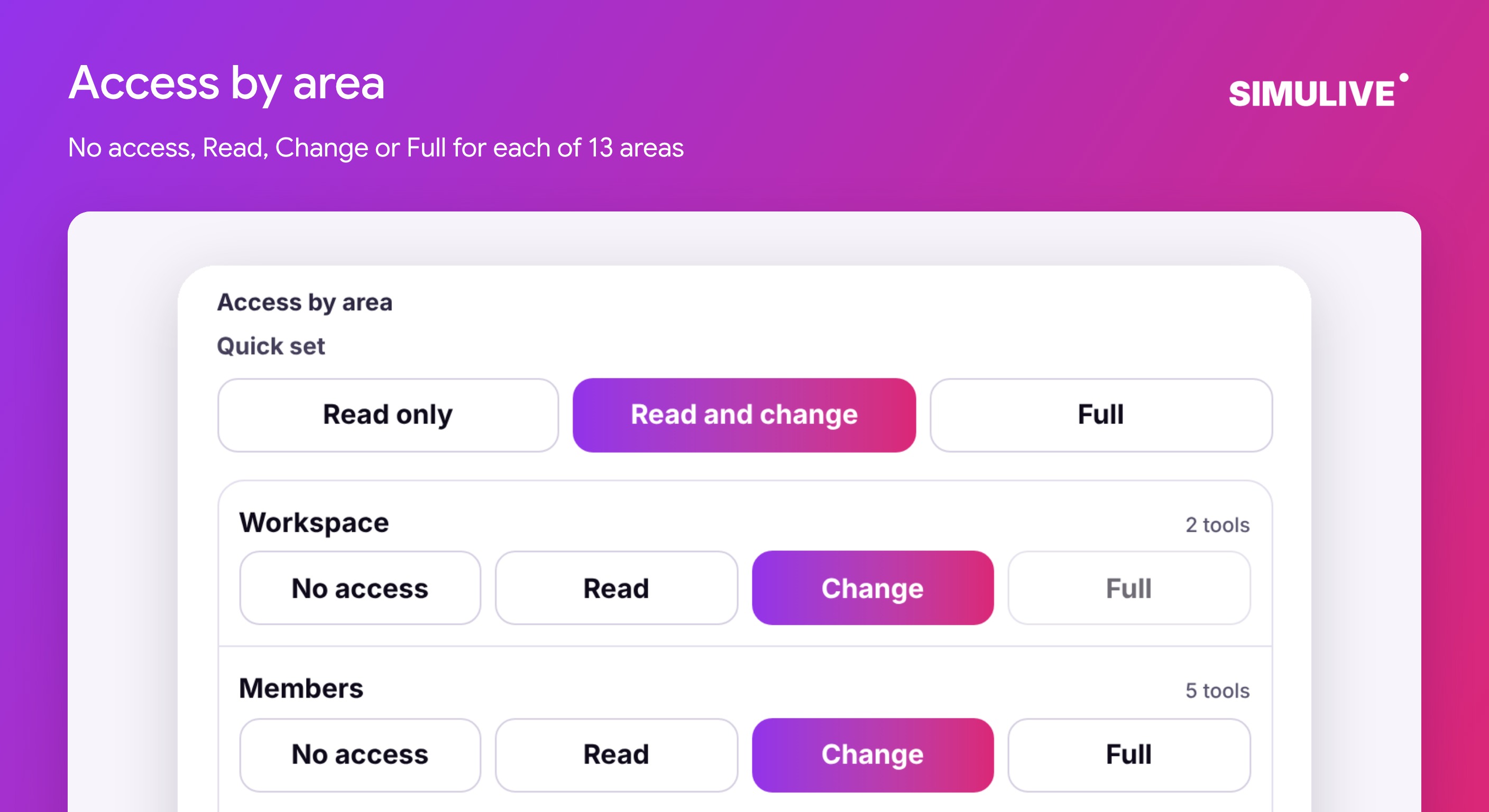
Access is set for each of 13 areas, such as Members, Series, Live controls, Library and Billing. Each area can be No access, Read, Change or Full, and Quick set applies one level everywhere.
Areas left at No access are hidden from the app completely. Your own workspace role still applies, so an agent never does more than you can.
Read
Look things up only. Nothing changes.
Change
Also create and update. Each change asks you first.
Full
Also remove, delete and restart live runs.
Steer Live Runs from the Chat
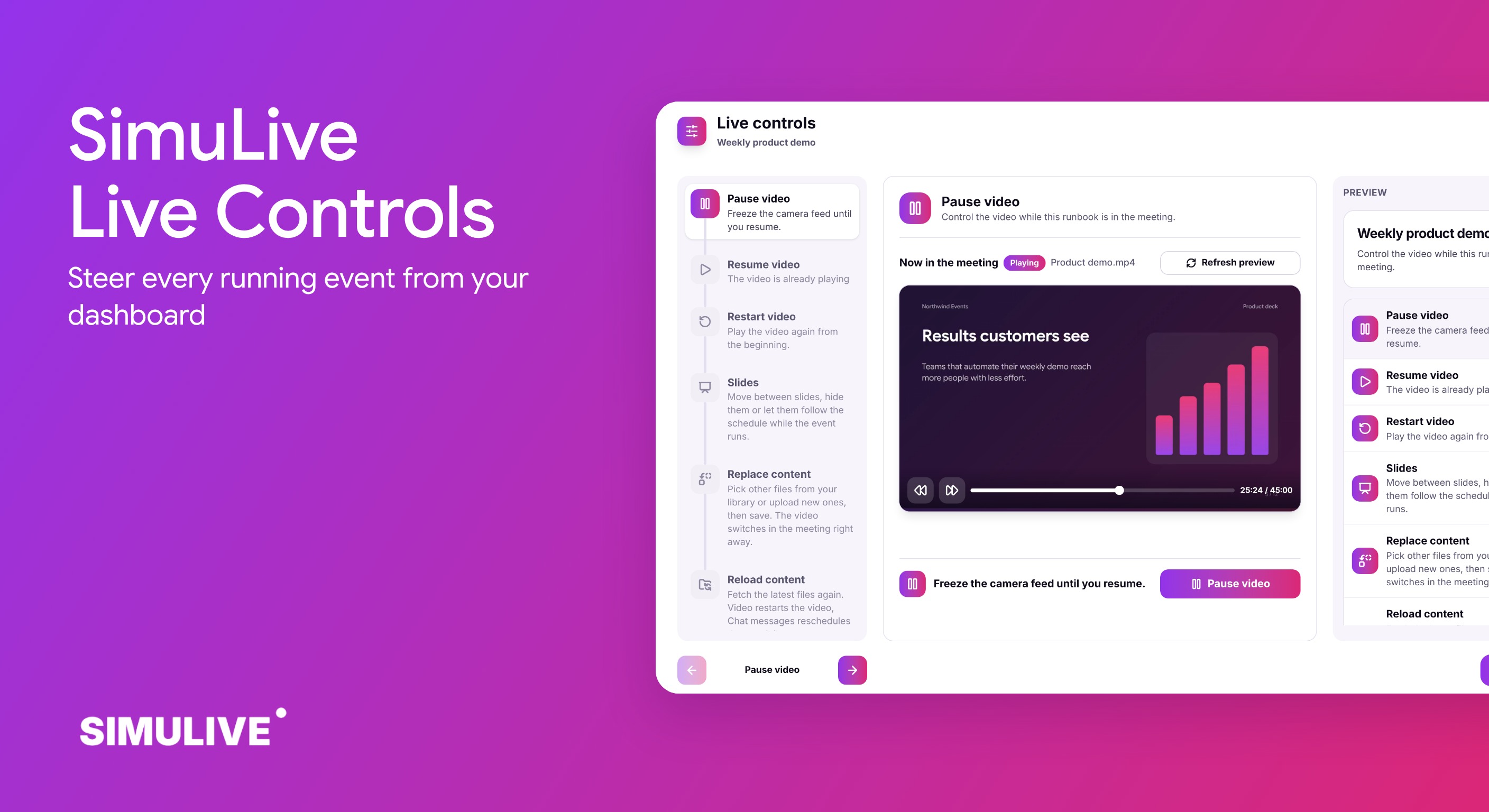
With access to Live controls, your app can list the runs that are live and see what each one is playing. With Change, it can pause, resume, seek and move slides. Restart and reload need Full access, because attendees see them.
Live controls wait a few seconds between actions, and the run owner and managers get a bell notice whenever an agent acts.
Safe by Design
Every agent works inside the same limits, whatever app it uses.
You confirm changes
Every change asks you in the chat before it runs.
Limited and recorded
Changes are rate limited and written to the audit log.
Data stays data
Text inside files, tickets and names is never treated as instructions.
Money stays on the website
Payments, seats, storage packs, cancelling and keys are managed by people, not agents.
Agent Keys and Revoking Access
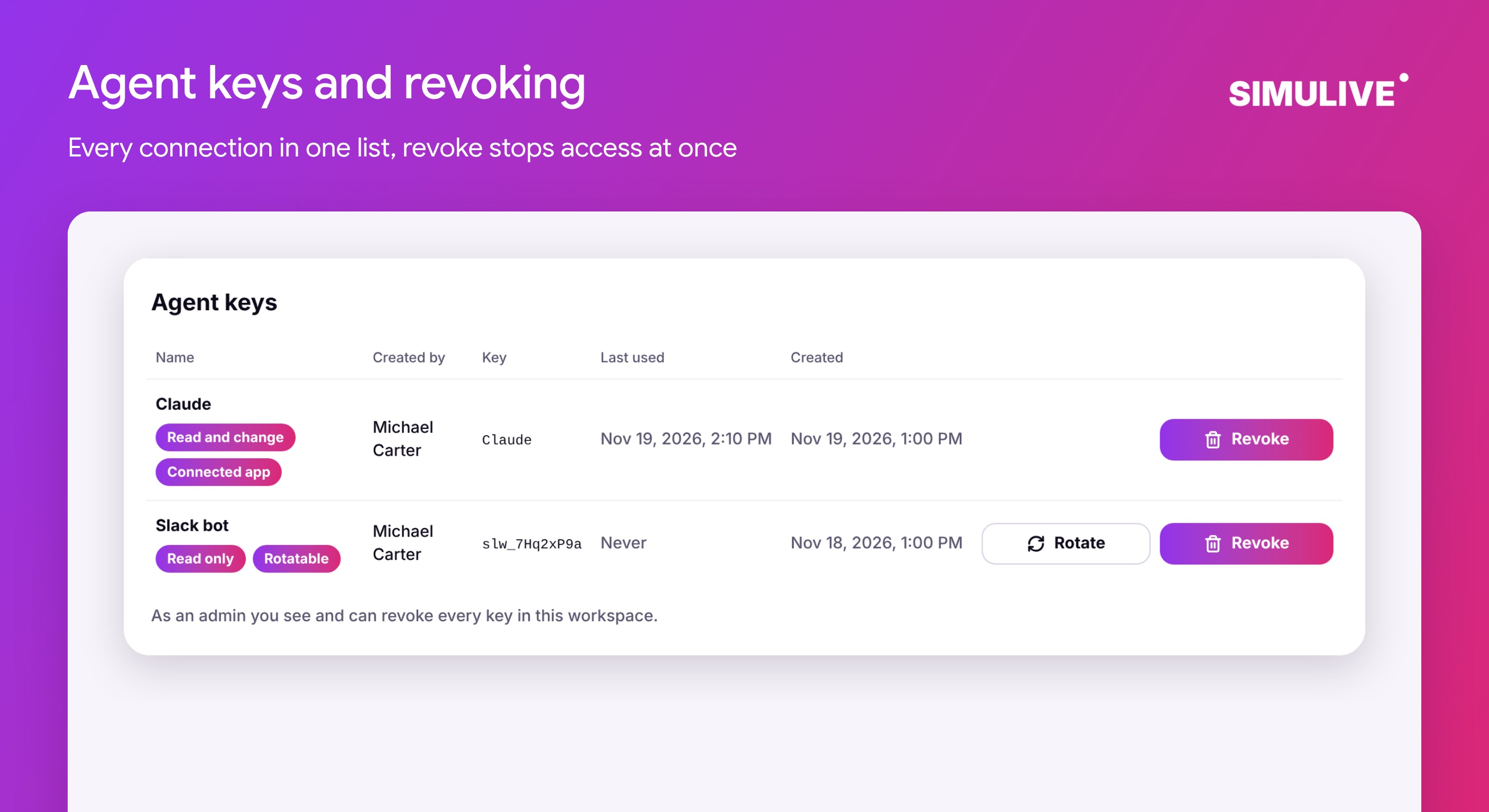
Bots and scripts that cannot sign in use an agent key with the same access by area. Every connection and key shows under Agent keys, with its access and when it was last used.
Select Revoke and access stops at once. Admins see and can revoke every connection in the workspace, and connections stop when a member leaves or is paused.
How to Get Started
Open your workspace and select Agents.
Select Connect and pick Claude, ChatGPT, Cursor, VS Code or Claude Code.
Follow the three steps shown for your app.
Sign in to SimuLive, choose access for each area, and approve.
Ask your app something in plain words, for example which series run this week.
Revoke the connection under Agent keys whenever you want.
Want every detail? The Agents user manual covers each app, every area and agent keys.
Frequently Asked Questions
More questions?
View All FAQsConclusion
Agents bring the AI app you already use into your workspace, with access you choose, confirmations you control, and a revoke button that works at once.
Ready to connect? Read the full Agents user manual for a step by step walkthrough.
Put Your AI to Work in SimuLive
Open your workspace, select Agents and connect your AI app in one click.