How to Create Automated Meetings and Webinars with Microsoft Teams
Complete SimuLive + Microsoft Teams Tutorial
SimuLive Team
Product and Marketing
This guide walks you through every step of creating automated meetings and webinars with Microsoft Teams using SimuLive. Teams supports Meetings and Webinars - deliver pre-recorded content through real Teams events with scheduled chat messages, the SimuHost AI co-host, virtual participants, bulk registrant management, and multi-platform live streaming, without being live.
Using another platform? See the Zoom automation guide, the Google Meet automation guide, or the combined guide covering all supported platforms.
What You Will Learn
Who Uses SimuLive with Microsoft Teams
Prerequisites
Microsoft 365 with Teams
- Microsoft 365 work or school account with Microsoft Teams
- Teams webinars need a plan that includes Teams webinars
- Some organizations require one time administrator approval
Google Drive for Content
- Stores your video, chat, and participant files
- SimuLive is Google verified - secure drive.file scope only
Video Content
- MP4, MOV, AVI, or MKV format
- 720p or 1080p recommended, up to 24 hours
Sign Up and Account Setup
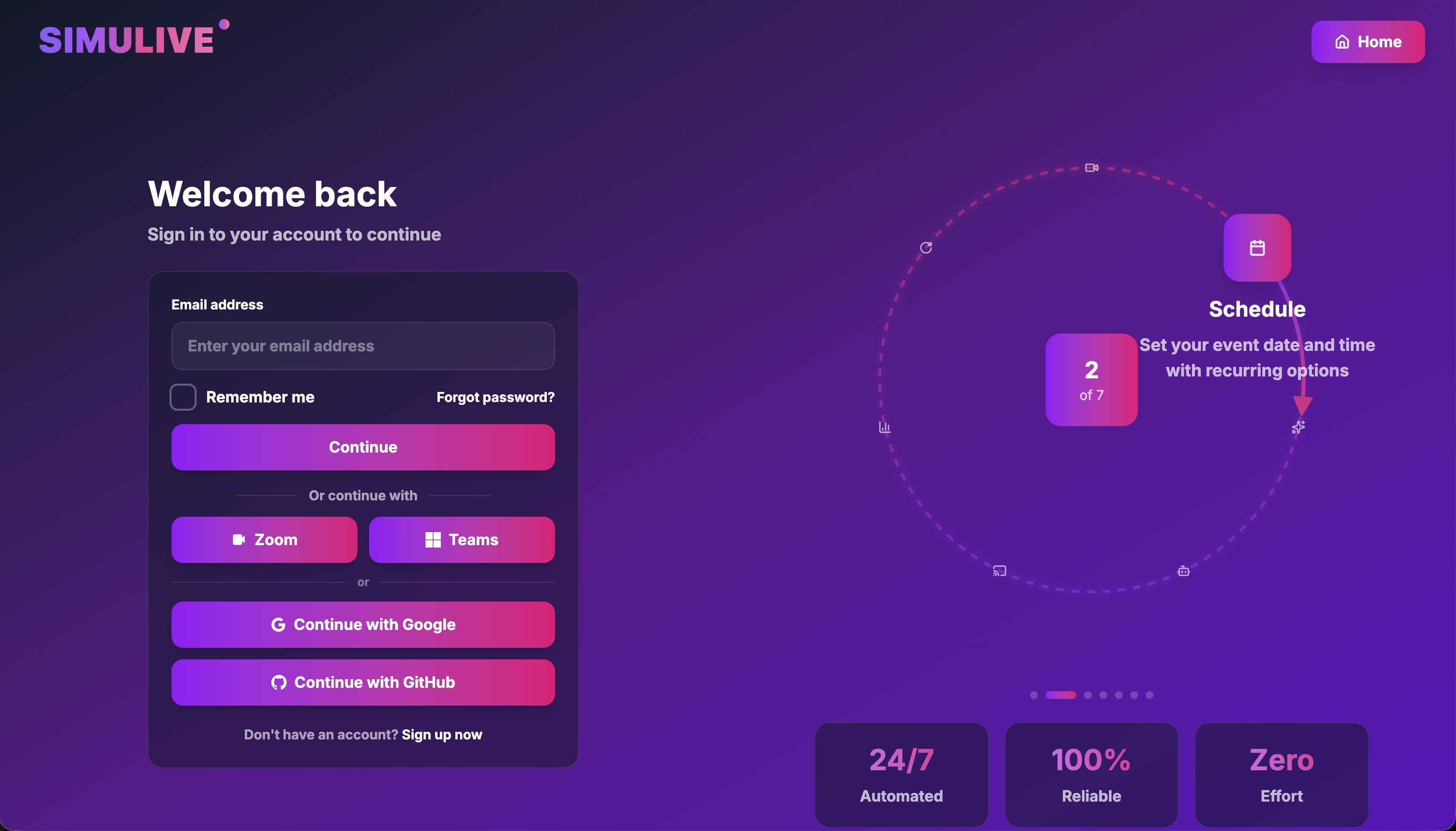
Visit simulive.us/login and sign in or create your account. Signing in or signing up with Teams is the fastest way - it also authorizes the Teams integration in the same step.
Teams OAuth (Recommended)
Select Teams on the sign in or sign up page, sign in with your Microsoft 365 account, and accept the Microsoft consent screen. Your Teams account is ready under Dashboard → Integrations → Teams.
Email or Other Providers
Sign up with email, Zoom, Google, or GitHub, then connect Teams once from Dashboard → Integrations → Teams.
After registration, go to Dashboard → Settings to set your default timezone, contact information, and notification preferences.
Choose Your Subscription Plan
Navigate to Dashboard → Subscription to purchase credits.
Chat simulation and virtual participants require Platinum or Diamond. Live streaming requires Gold or above. See the below.
Authorize Microsoft Teams
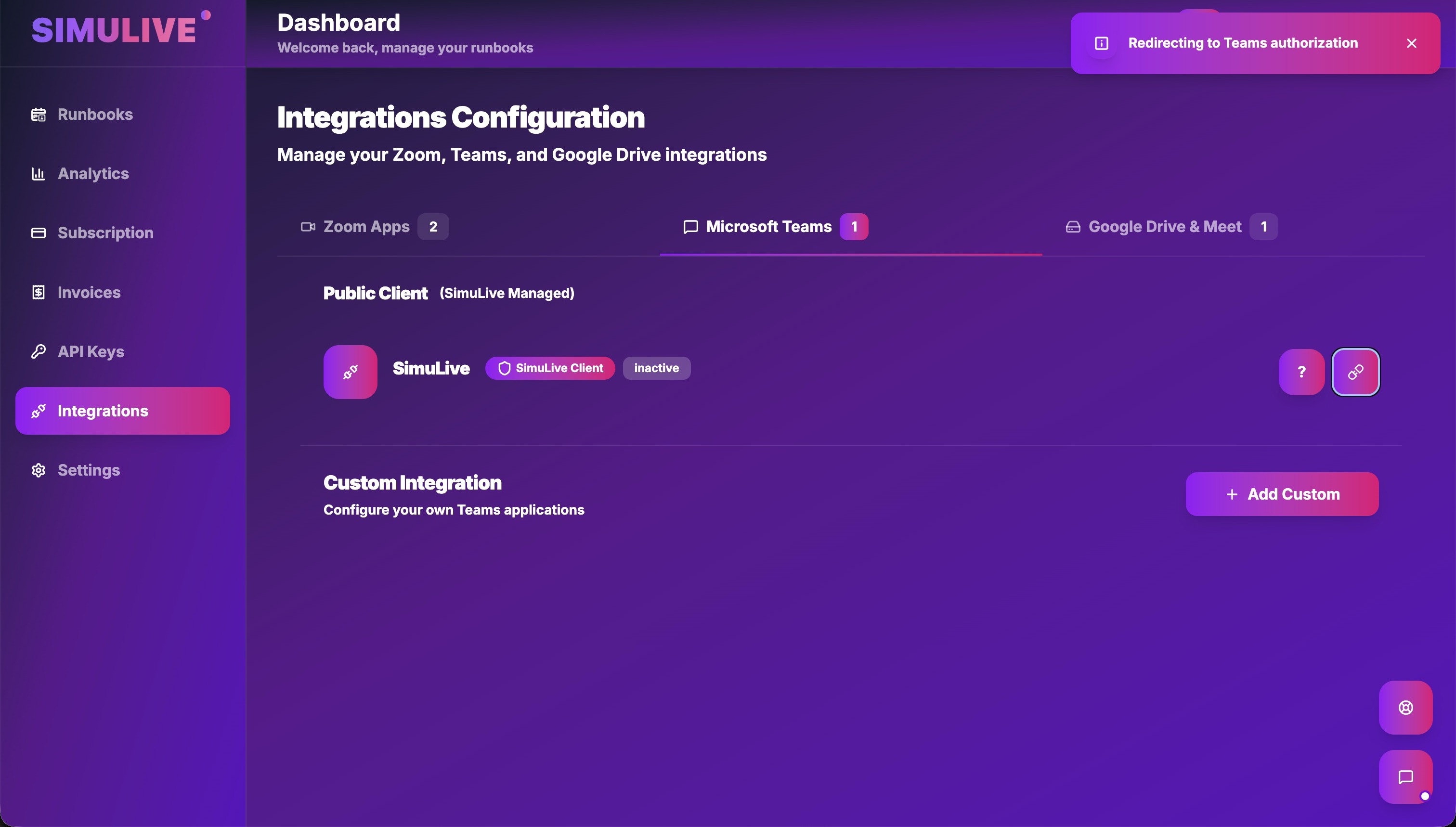
Skip this step if you signed in with Teams. Otherwise go to Dashboard → Integrations → Teams and connect your Microsoft 365 account with the SimuLive public client.
Authorization Steps
- 1Go to Dashboard → Integrations → Teams and select "Connect to Teams" under Public Client
- 2Sign in with your Microsoft 365 work or school account
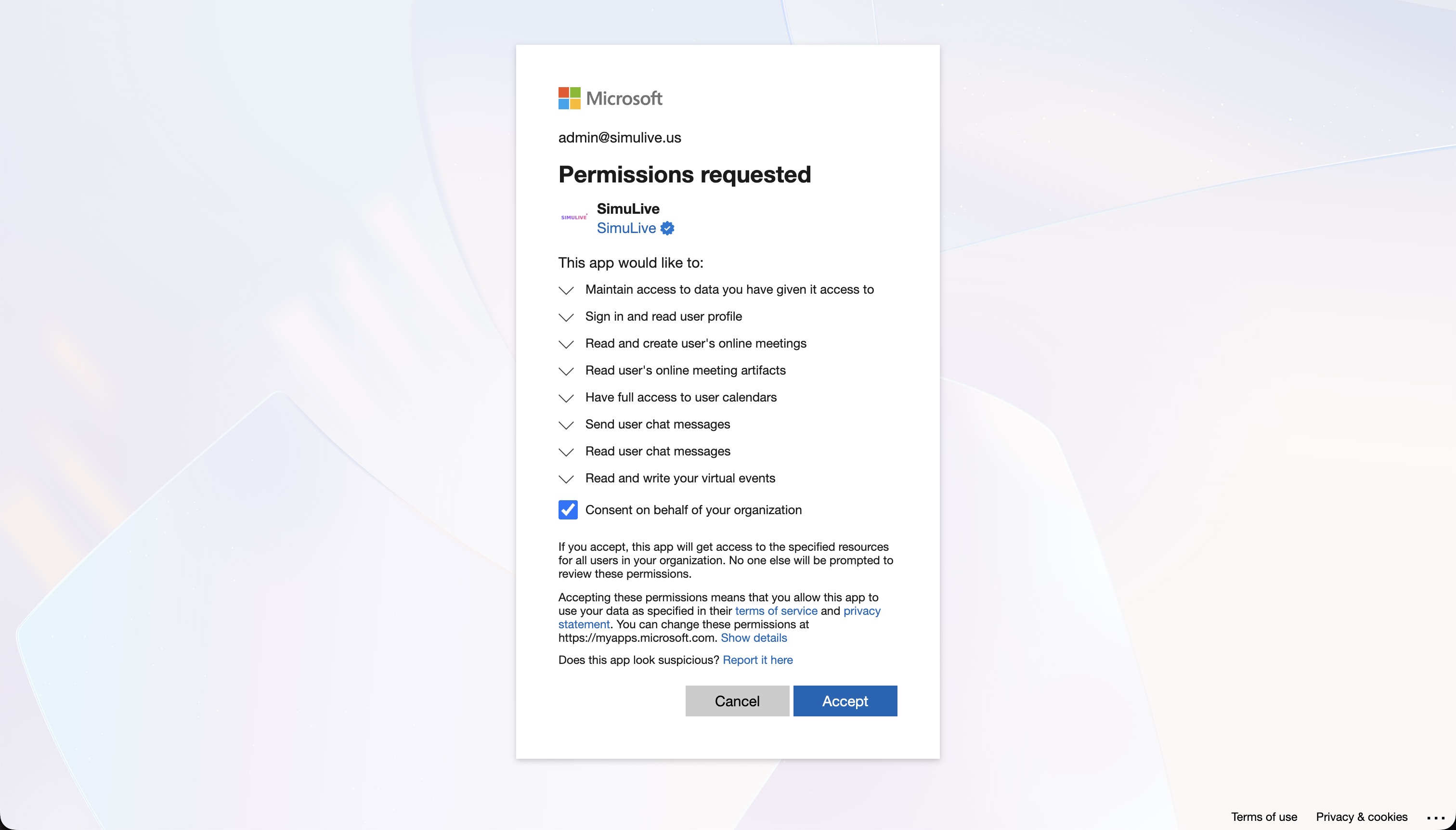
- 3Review the permissions on the Microsoft consent screen and select Accept
- 4You return to SimuLive and your Microsoft account shows Active
Upload Your Content
Content is uploaded during runbook creation via Dashboard → Runbooks → Create → Config → Upload Files.
Video File
Supported formats
- MP4 (Recommended)
- MOV, AVI, MKV
Recommended specs
- 720p or 1080p resolution
- Up to 24 hours duration
Chat Simulation (messages.xlsx) - Platinum/Diamond
Timestamped chat messages posted automatically in the Teams meeting chat.
{
  "00:30": "Welcome everyone!",
  "05:00": "Great question, let me address that...",
  "10:30": "We are halfway through!"
}Virtual Participants (participant-names.xlsx) - Platinum/Diamond
Up to 5 pre-joined attendees for social proof in your Teams event.
["Sarah Johnson", "Michael Chen", "Emily Davis"]
Create Your Microsoft Teams Runbook
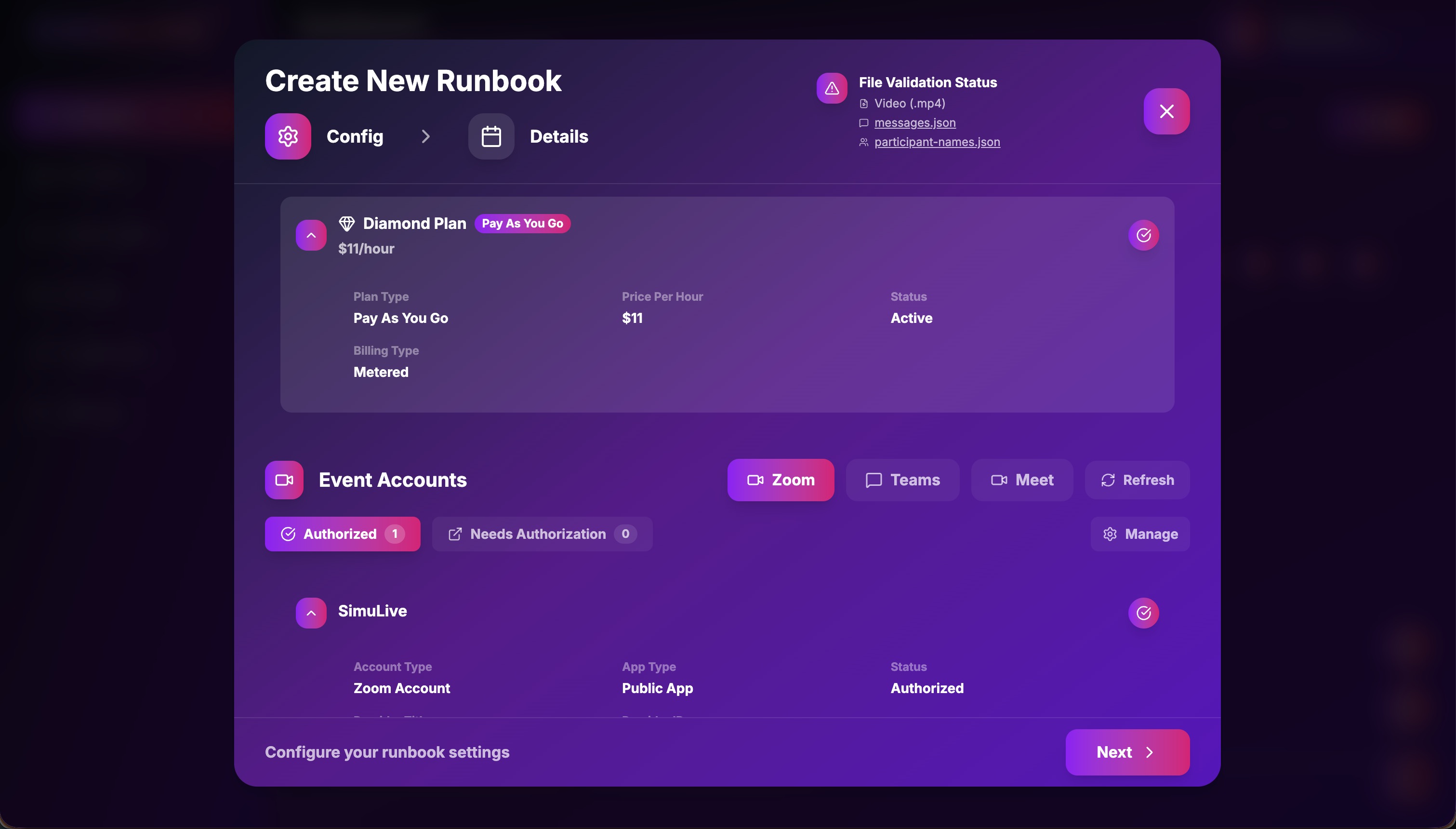
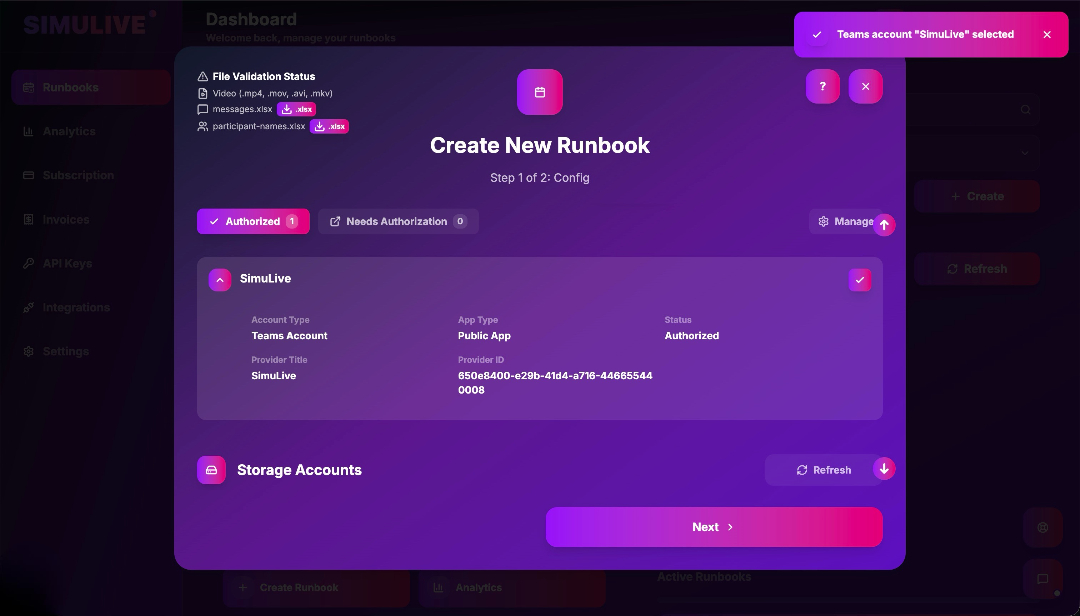
Go to Dashboard → Runbooks and click "Create Runbook".
Step 5.1 - Config
- Subscription: Select active plan with credits
- Microsoft Teams Account: Select your authorized Microsoft 365 account
- Google Drive: Browse existing folders or upload new content
Step 5.2 - Details
- Event Type: Meeting or Webinar
- Date and Time: At least 5 minutes ahead, in your timezone
- Schedule Type: One-time or Recurring. A recurring webinar runs as a recurring Teams meeting series
Run Teams Meetings and Webinars
Teams Meetings
- Start automatically at the scheduled time
- SimuLive joins with your first and last name, or Host when no name is set
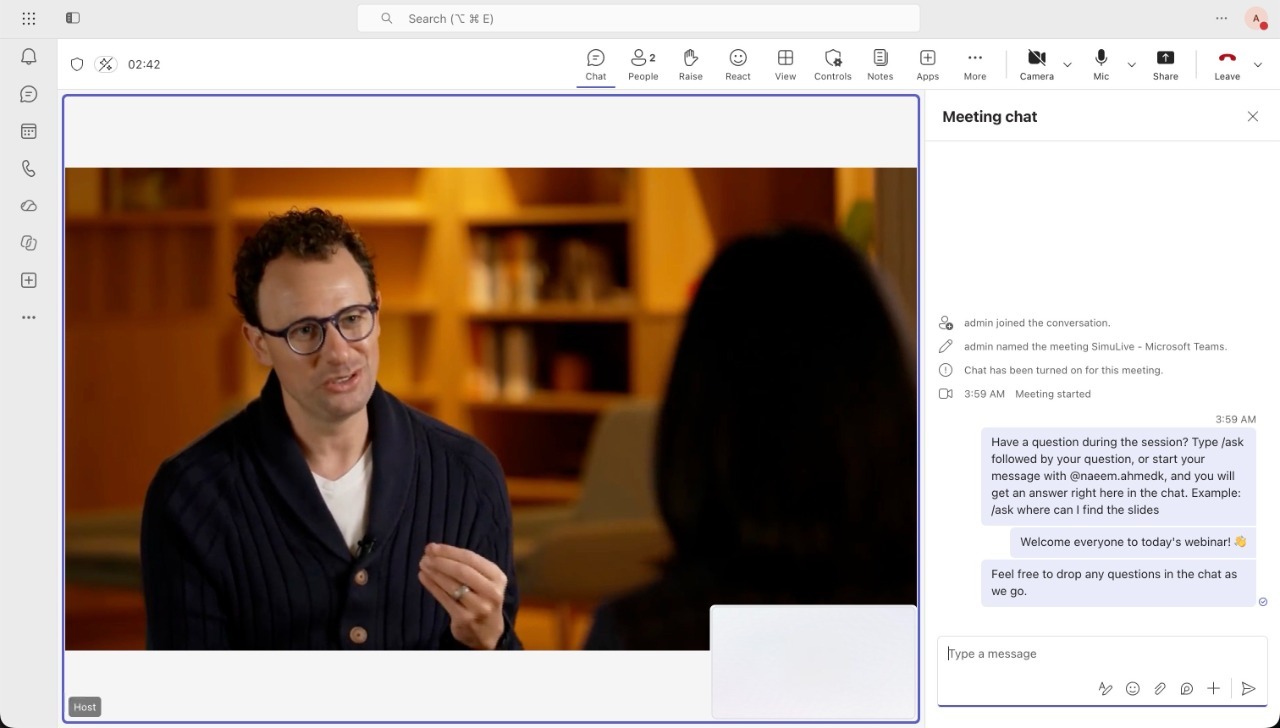
- Your video plays from the beginning and scheduled messages appear in the chat
- With SimuHost on, attendees ask with /ask or your @handle and get replies in the chat
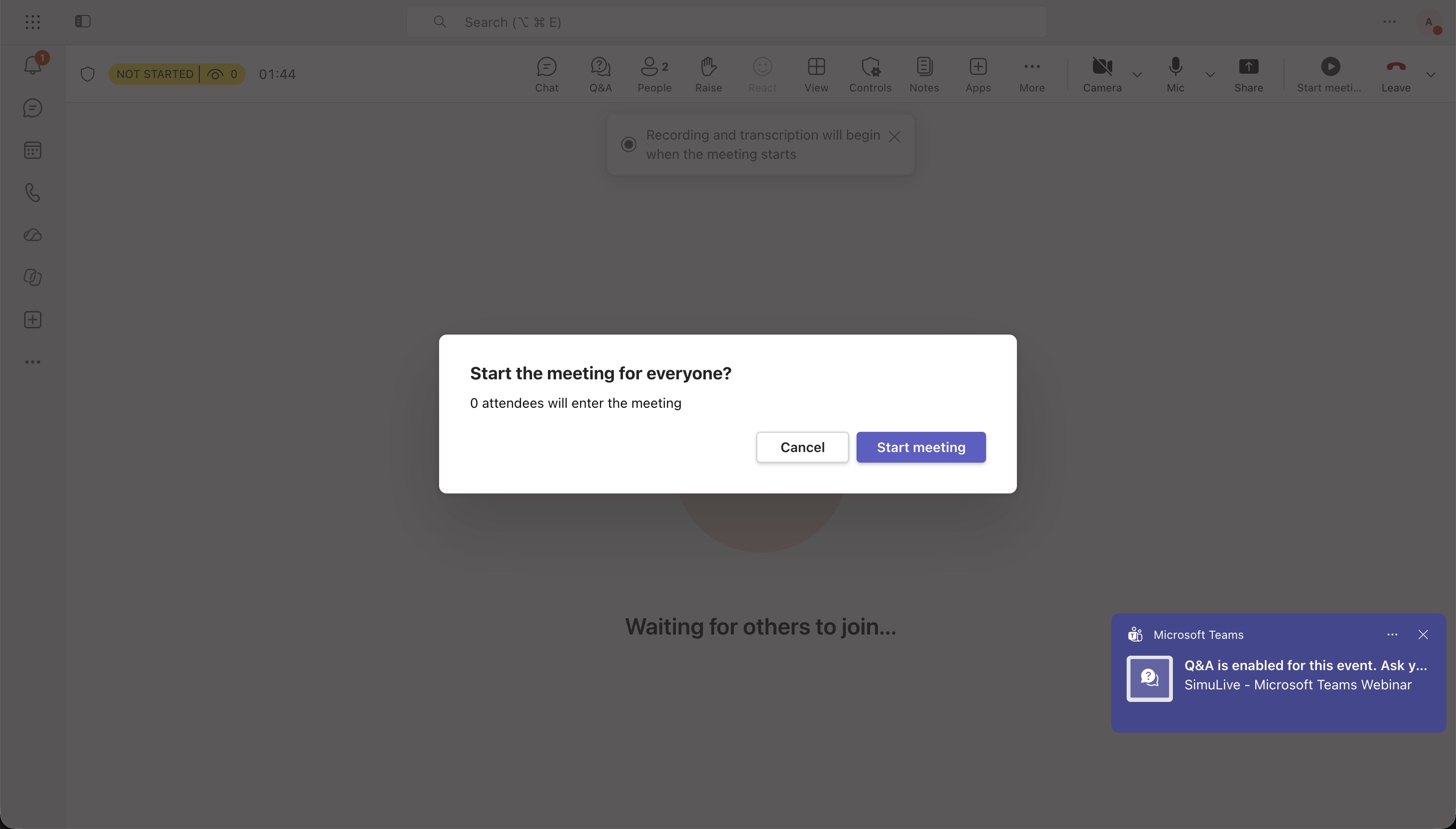
Teams Webinars
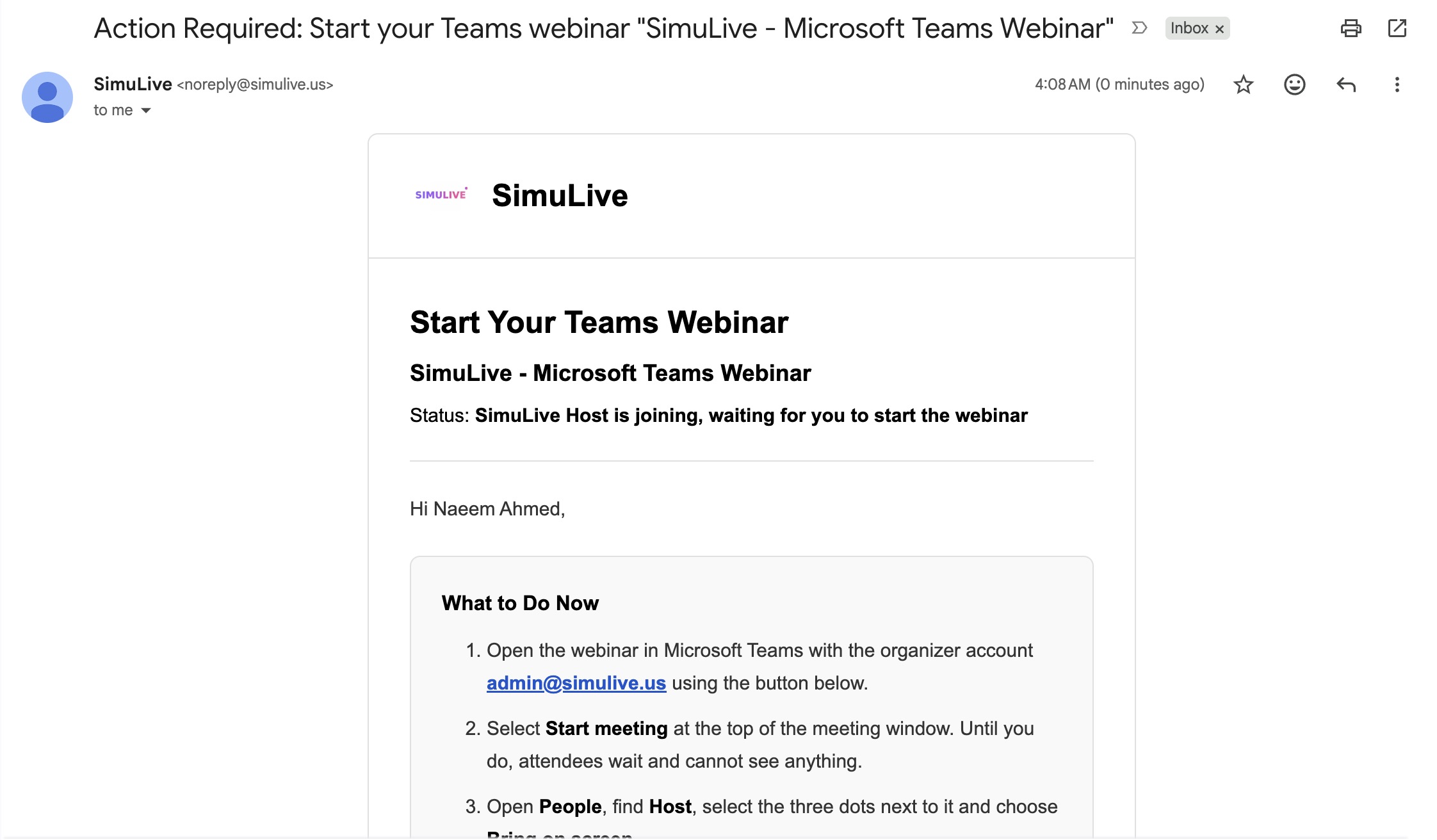
- 1At the start time, open the email Action Required: Start your Teams webinar and select Open Webinar in Teams
- 2In Teams, select Start meeting
- 3Open People, find the SimuLive participant, select the three dots, and choose Bring on screen
Manage Registrants
Upload a spreadsheet of registrants from the runbook dashboard and sync them to your Teams event automatically.
How to Upload Registrants
- 1Go to Dashboard → Runbooks and click the Registrants icon on your runbook
- 2Upload your registrant file in .xlsx, .csv, or .json - stored automatically in your Google Drive
- 3Click Sync to register all new rows. Already processed rows are skipped
- 4Click View & Edit in Google Sheets to update entries, then Sync again
Required Columns and Status Guide
Leave blank or set to init to register on next Sync.
Update an existing registrant's details on next Sync.
Cancel and delete an existing registrant on next Sync.
These rows are skipped. Set back to init to re-process.
Sample Registrant Files
Configure Live Streaming
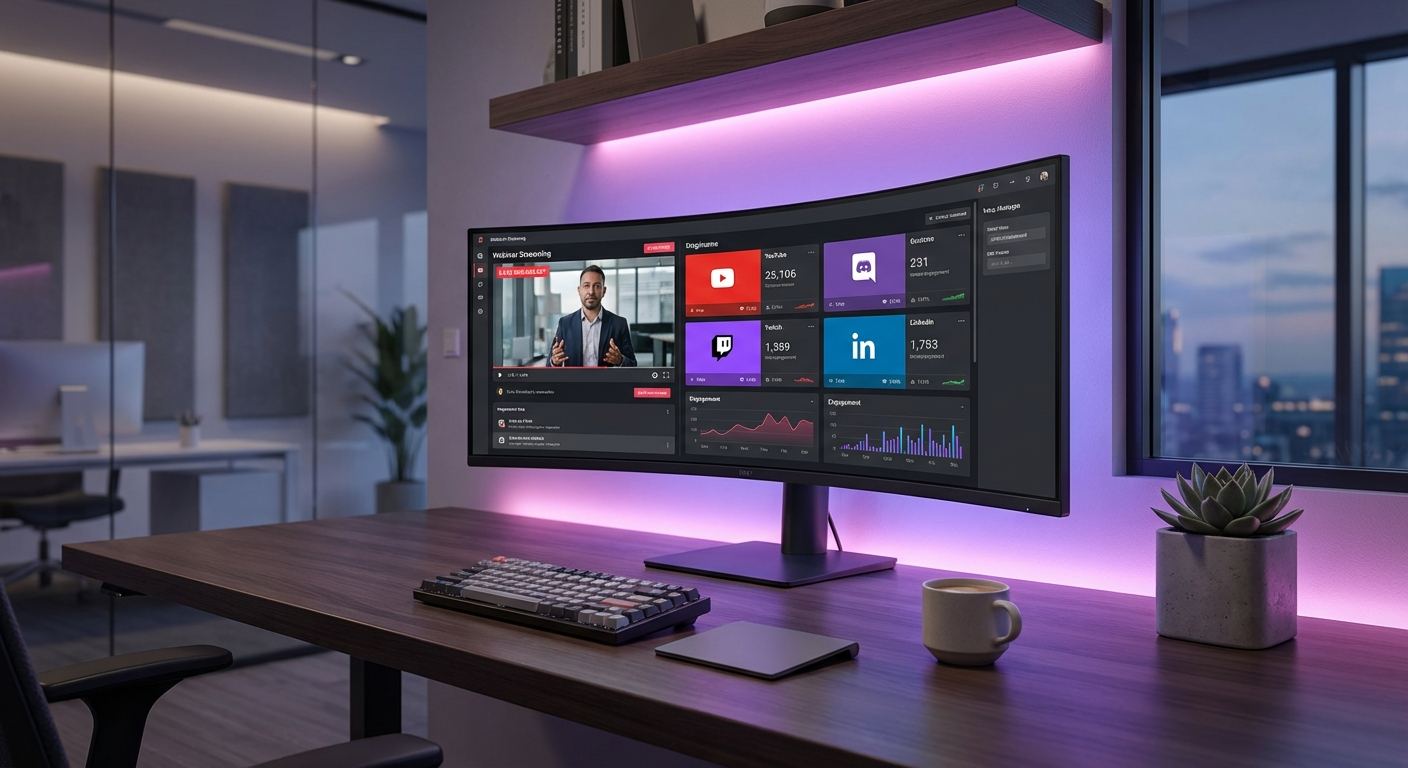
Stream your automated Teams meeting or webinar simultaneously to multiple platforms. Requires Gold, Platinum, or Diamond subscription. Click the Stream icon on your runbook in Dashboard → Runbooks.
Supported Streaming Destinations
- 1Open Live Stream modal → set stream start time and resolution
- 2Add stream key and RTMP URL for each destination
- 3Click Save All
- 4When runbook is Running, start the Source Encoder first, then Start All destinations
Manage and Monitor Events
All events are managed from Dashboard → Runbooks.
Runbook Statuses
Available Actions
View
View details
Edit
Modify settings
Stream
Live streaming
Delete
Remove or abort
Subscription Plans Comparison
Troubleshooting
Teams account not available when creating a runbook
Go to Dashboard, then Integrations, then Teams and check that your Microsoft account shows Active. If it does not, select Connect to Teams again, or sign in with Teams from the sign in page.
Approval required message from Microsoft
Your organization requires an administrator to approve apps. Ask your Microsoft 365 administrator to approve SimuLive once, then connect again.
Webinar does not show the video to attendees
Teams webinars need two manual steps: select Start meeting, then Bring on screen on the SimuLive participant. SimuLive emails these steps for every webinar run.
Chat messages not appearing
Verify you have a Platinum or Diamond subscription. Check that your messages.xlsx file uses the correct MM:SS format.
Live stream not starting
Verify you have Gold or above. Check stream key (min 10 chars) and RTMP URL. Start the Source Encoder first when the runbook is Running, then start destinations.
Insufficient credits
Go to Dashboard, then Subscription to purchase additional credits or reduce the event duration.
Need help? Visit simulive.us/support or email support@simulive.us. Platinum and Diamond subscribers receive priority support.
Frequently Asked Questions
More questions?
View All FAQsConclusion
You now have everything needed to run fully automated Microsoft Teams meetings and webinars with SimuLive. Sign in with Teams, upload your content, schedule your runbook, manage registrants in bulk, and stream to multiple platforms - all without being live.
Want to do the same with Zoom or Google Meet? See the Zoom automation guide or the Google Meet automation guide.
Ready to Automate Your Microsoft Teams Events?
Start delivering live-quality Teams meetings and webinars with pre-recorded content today.