How to Connect Google Drive to SimuLive
Complete Google Drive + SimuLive Setup Guide
SimuLive Team
Product and Marketing
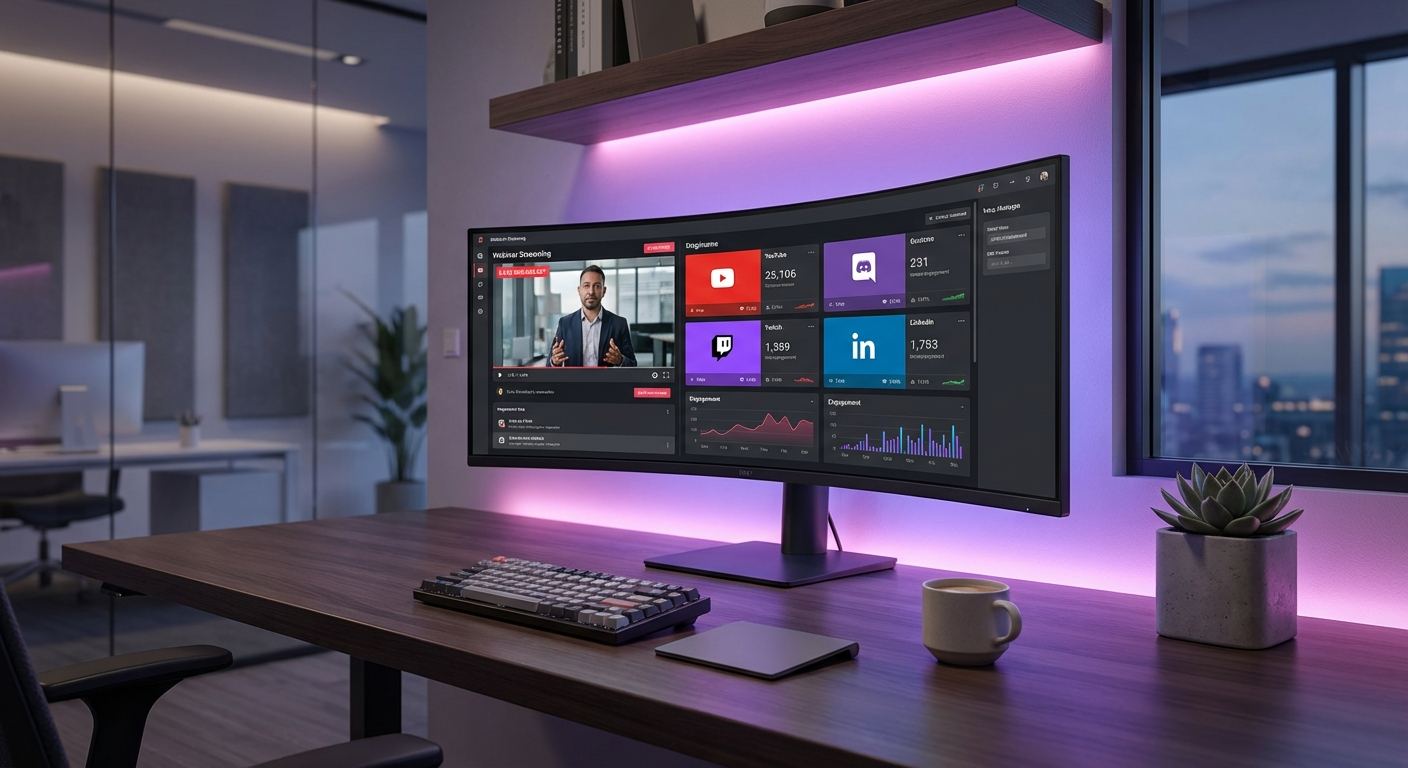
This guide walks you through every step of connecting Google Drive to SimuLive and using it as the content storage layer for your automated webinars and meetings. Google Drive is required for all SimuLive events, it stores your video, chat simulation files, and virtual participant files that power each automated event on Zoom and Google Meet.
Looking to automate a specific platform? See the Zoom automation guide or the Google Meet automation guide. For a full platform overview, see the combined guide.
What You Will Learn
Who Uses SimuLive with Google Drive
Prerequisites
Google Account
- Personal Google account or Google Workspace account
- No additional Google Drive plan required, free tier is sufficient
- Enough Drive storage for your video files (720p to 1080p videos are typically 1 to 5 GB per hour)
Video Content
- MP4, MOV, AVI, or MKV format
- 720p or 1080p recommended, up to 24 hours
- Up to 5 GB per file
Event Platform Account
- Zoom Pro or higher for Zoom Meetings and Webinars
- Google account with Meet access for Google Meet events
Sign Up and Account Setup
Visit simulive.us and create your account. Google OAuth is the fastest option, your Google Drive is connected automatically during signup.
Google OAuth (Recommended)
Click "Continue with Google" for instant signup. Your Google account is authorized for Drive automatically. You can then also accept Meet permissions from Dashboard → Integrations to enable Google Meet events.
Email Registration
Sign up with email, verify your account, then connect Google Drive from Dashboard → Integrations.
After registration, go to Dashboard → Settings to set your default timezone, contact information, and notification preferences.
Choose Your Subscription Plan
Navigate to Dashboard → Subscription to purchase credits. Google Drive is required on all plans, the plan you choose determines video quality, live stream quality, and whether chat simulation and virtual participants are available.
Chat simulation and virtual participants require Platinum or Diamond. Live streaming requires Gold or above. See the below.
Connect Google Drive
Go to Dashboard → Integrations. Google Drive is authorized via a single OAuth flow. If you also want to use Google Meet as an event platform, accept the Meet permissions on the same consent screen.
Authorization Steps
- 1Go to Dashboard → Integrations and click "Authorize" next to Google Drive
- 2You will be redirected to the Google OAuth consent screen. Review the permissions listed
- 3Click Allow to grant the drive.file scope, this allows SimuLive to create and manage only the files and folders it creates on your behalf
- 4You will be redirected back to SimuLive. Your Google account will show as Active
What SimuLive Can and Cannot Access
SimuLive CAN access
- Files and folders created by SimuLive via the upload flow
- Files inside SimuLive-created folders (video, messages.xlsx, participant-names.xlsx)
- Registrant spreadsheets auto-generated by SimuLive
SimuLive CANNOT access
- Your existing Google Drive files and folders
- Google Docs, Sheets, or Slides
- Shared drives or files shared with you
Upload Your Content to Google Drive
Content is uploaded during runbook creation via Dashboard → Runbooks → Create → Config → Upload Files. SimuLive automatically creates a folder in your Google Drive and uploads your files into it.
Video File (Required)
Supported formats
- MP4 (Recommended)
- MOV, AVI, MKV
Recommended specs
- 720p or 1080p resolution
- Up to 24 hours duration
- Up to 5 GB per file
Files larger than 5 MB are automatically uploaded using resumable chunked uploads so large video files transfer reliably without timing out.
Chat Simulation (messages.xlsx) - Platinum/Diamond
Timestamped chat messages sent automatically during the event. SimuLive auto-detects and renames files that match the messages format.
time      | message
00:30     | Welcome everyone!
05:00     | Great question, let me address that...
10:30     | We are halfway through!
Virtual Participants (participant-names.xlsx) - Platinum/Diamond
Up to 5 pre-joined attendees for social proof. SimuLive auto-detects and renames files that match the participants format.
name
Sarah Johnson
Michael Chen
Emily Davis
How to Upload
- 1Open the runbook creation wizard at Dashboard → Runbooks → Create Runbook
- 2In the Config step, select your Google Drive account under Storage Accounts
- 3Switch to the Upload Files tab and drag and drop or click to select your video and optional xlsx files
- 4SimuLive uploads the files to a new folder in your Google Drive and shows a Ready badge once all required files are validated
Browse and Select Google Drive Folders
Inside the runbook creation wizard, the Google Drive tab shows all folders previously created by SimuLive. You can browse, search, validate, rename, delete, and upload files to any folder from this interface.
Folder Browser Features
Search across all your SimuLive folders by name in real time.
Each folder shows a Ready badge when it contains a valid video file and all required files for your subscription.
Click the arrow icon to navigate inside a folder and see its file contents including size and type.
Click the upload icon on any folder to add or replace files without creating a new folder.
Click the pencil icon to rename any folder. The change syncs immediately to Google Drive.
Click the trash icon to delete a folder and all its contents. Deletion is blocked if the folder is used by an active runbook.
Click Refresh to reload the folder list from Google Drive at any time.
Click Select on any folder to use it as the content source for your runbook.
File Validation Status
When you expand a folder, SimuLive checks each file and shows validation indicators:
Required on all plans
Optional, required only if Auto Chat is enabled (Platinum/Diamond)
Optional, required only if Pre-joined Participants > 0 (Platinum/Diamond)
Uploading to an Existing Folder
- 1In the Google Drive folder browser, find the folder you want to update
- 2Click the Upload icon on that folder row
- 3A modal will open, drag and drop or select files to upload into that specific folder
- 4Once all uploads complete, the folder validation status refreshes automatically
If the folder is currently being used by a running or scheduled runbook, the upload modal will be blocked and a list of the active runbooks will be shown.
Create a Runbook Using Your Google Drive Content
Go to Dashboard → Runbooks and click "Create Runbook". The wizard has two steps: Config and Details.
Step 6.1 - Config
- Subscription: Select active plan with credits
- Event Account: Select your Zoom or Google Meet account
- Storage Account: Select your authorized Google Drive account
- Google Drive Folder: Browse and select or upload new content
Step 6.2 - Details
- Event Type: Zoom Meeting, Zoom Webinar, or Google Meet
- Date and Time: At least 5 minutes ahead, in your timezone
- Schedule Type: One-time, Recurring fixed time, or Recurring flexible
Manage Files in Google Drive
SimuLive provides full file management within the runbook wizard so you never need to leave the platform to manage your Drive content.
Deleting Individual Files
When you click the upload icon on an existing folder, the modal shows all current files in that folder. Each file has a delete button to remove it individually without deleting the entire folder.
- 1Click the upload icon on the folder containing the file you want to remove
- 2In the modal, find the file and click the trash icon next to it
- 3The file is permanently deleted from Google Drive immediately
Deleting an Entire Folder
Clicking the trash icon on a folder opens a confirmation dialog. SimuLive performs a pre-check before allowing deletion.
Folder is not used by any active runbook. Confirm to permanently delete the folder and all its files from Google Drive.
Folder is used by one or more active or scheduled runbooks. The blocking runbooks are listed. You must wait for them to complete or abort them before deleting.
Sample File Templates
Manage and Monitor Events
All events are managed from Dashboard → Runbooks.
Runbook Statuses
Available Actions
View
View details
Edit
Modify settings
Stream
Live streaming
Delete
Remove or abort
Subscription Plans Comparison
Troubleshooting
Google Drive not connected
Go to Dashboard, then Integrations and click Authorize next to Google Drive. Complete the OAuth consent screen and click Allow. If you signed up with Google OAuth, try disconnecting and reconnecting from the same page.
No folders appear in the folder browser
SimuLive can only see folders it created via the upload flow due to the secure drive.file scope. Switch to the Upload Files tab to upload your content and create a new SimuLive-managed folder.
Folder shows as invalid (no Ready badge)
Expand the folder to see which files are missing. A video file is required on all plans. Click the upload icon on the folder to add the missing files without creating a new folder.
Upload blocked on an existing folder
The folder is currently being used by an active or scheduled runbook. The blocking runbooks are listed in the modal. Wait for them to complete or abort them from Dashboard, then Runbooks before uploading.
Folder deletion blocked
The folder is used by one or more active runbooks. Abort the blocking runbooks from Dashboard, then Runbooks first, then delete the folder.
Google Drive authorization expired
Google OAuth tokens can expire or be revoked. Go to Dashboard, then Integrations and re-authorize your Google account to restore access.
Upload fails for large video files
SimuLive uses resumable chunked uploads for files larger than 5 MB. If an upload fails mid-way, use the Retry button on the file in the upload panel to resume from where it left off.
Need help? Visit simulive.us/support or email support@simulive.us. Platinum and Diamond subscribers receive priority support.
Frequently Asked Questions
More questions?
View All FAQsConclusion
You now have everything needed to connect Google Drive to SimuLive and manage your automated event content end to end. Authorize your Google account, upload your video and optional xlsx files, browse and validate your folders, and create runbooks that stream your content on Zoom or Google Meet, all without being live.
Ready to run your first automated event? See the Zoom automation guide or the Google Meet automation guide.
Ready to Connect Google Drive and Automate Your Events?
Start delivering live-quality automated events with pre-recorded content from Google Drive today.