Live Stream to YouTube, Facebook, Twitch & TikTok
Built Into SimuLive at No Extra Cost
SimuLive Team
Product and Marketing
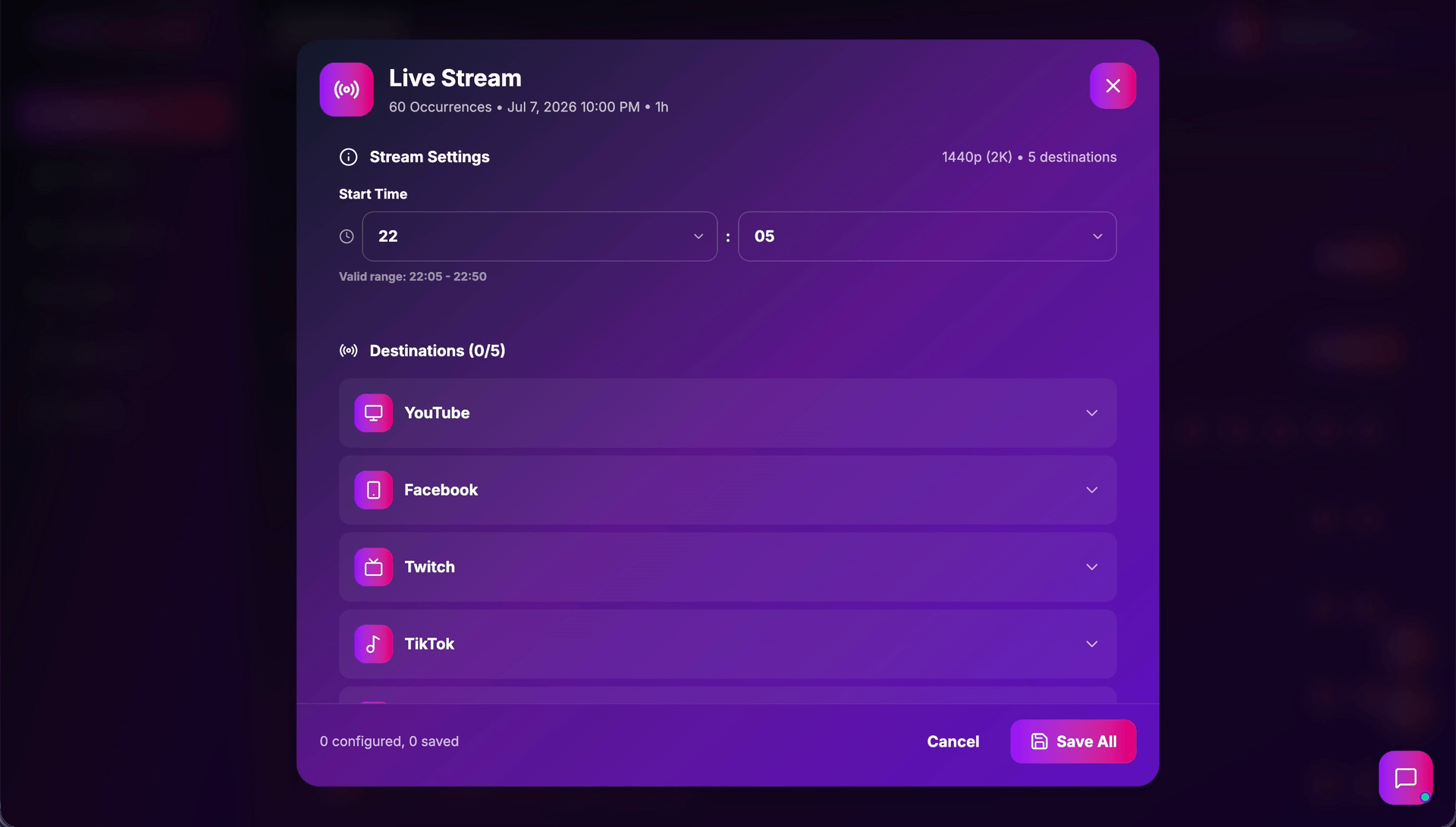
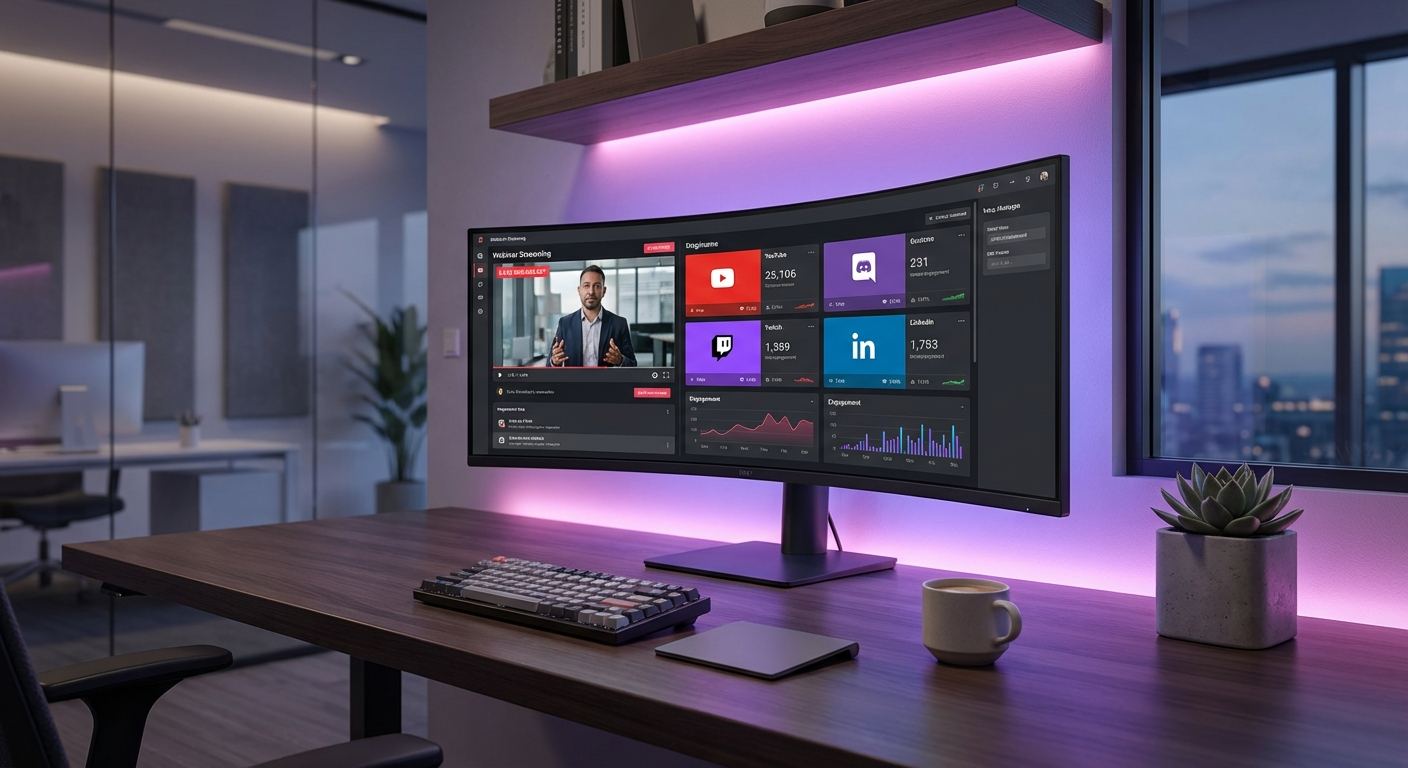
SimuLive Live Streaming lets you broadcast your automated Zoom or Google Meet runbook to YouTube, Facebook, Twitch, TikTok, and any Custom RTMP destination at the same time - included in your subscription at no extra cost, up to 4K, with no OBS or third-party encoder required.
Every runbook also gets its own dedicated live page on simulive.us automatically - no setup required. Click the SimuLive icon on your runbook, then Open Stream, and you land on a page with its own group chat, where the runbook owner is automatically the Host and everyone else who joins is automatically a Participant. See the Zoom automation guide or the Google Meet automation guide first if you have not created a runbook yet.
What You Will Learn
Who Uses SimuLive Live Streaming
How It Works
Live streaming attaches directly to a runbook. While your runbook plays your video content into Zoom or Google Meet, SimuLive simultaneously re-encodes that same output and pushes it to every destination you connect, without any capture card, virtual camera, or OBS scene.
No Extra Cost
Included with every subscription plan - no separate streaming fee or add-on purchase.
No OBS Required
SimuLive is the encoder. There is no software to install, configure, or keep running on your computer.
Dedicated Live Page
Automatically enabled the moment a runbook is created - click the SimuLive icon, then Open Stream to reach your live page with group chat.
Prerequisites
SimuLive Subscription
- All plans include live streaming
- Diamond required for Custom RTMP and 4K
A Runbook
- An existing runbook, or create a new Zoom or Google Meet runbook
- Streaming attaches to the runbook duration you schedule
Destination Accounts
- A live-enabled channel or page on YouTube, Facebook, Twitch, or TikTok
- Or any Custom RTMP endpoint (Diamond)
No Extra Software
- No OBS, Streamlabs, or third-party encoder needed
- Everything runs from your SimuLive dashboard
Sign Up and Account Setup
Visit simulive.us and create your account. If you already have a SimuLive account with a runbook set up, skip ahead to .
Google OAuth (Recommended)
Click "Continue with Google" for instant signup with automatic Google Drive integration.
Email Registration
Sign up with email, verify your account, then connect Zoom or Google Meet from Dashboard → Integrations.
Choose a Subscription That Unlocks Streaming
Navigate to Dashboard → Subscription. Live streaming is included at no extra charge on every plan - you only pay your normal per-hour plan rate.
See the below for every streaming feature by plan.
Select or Create a Runbook
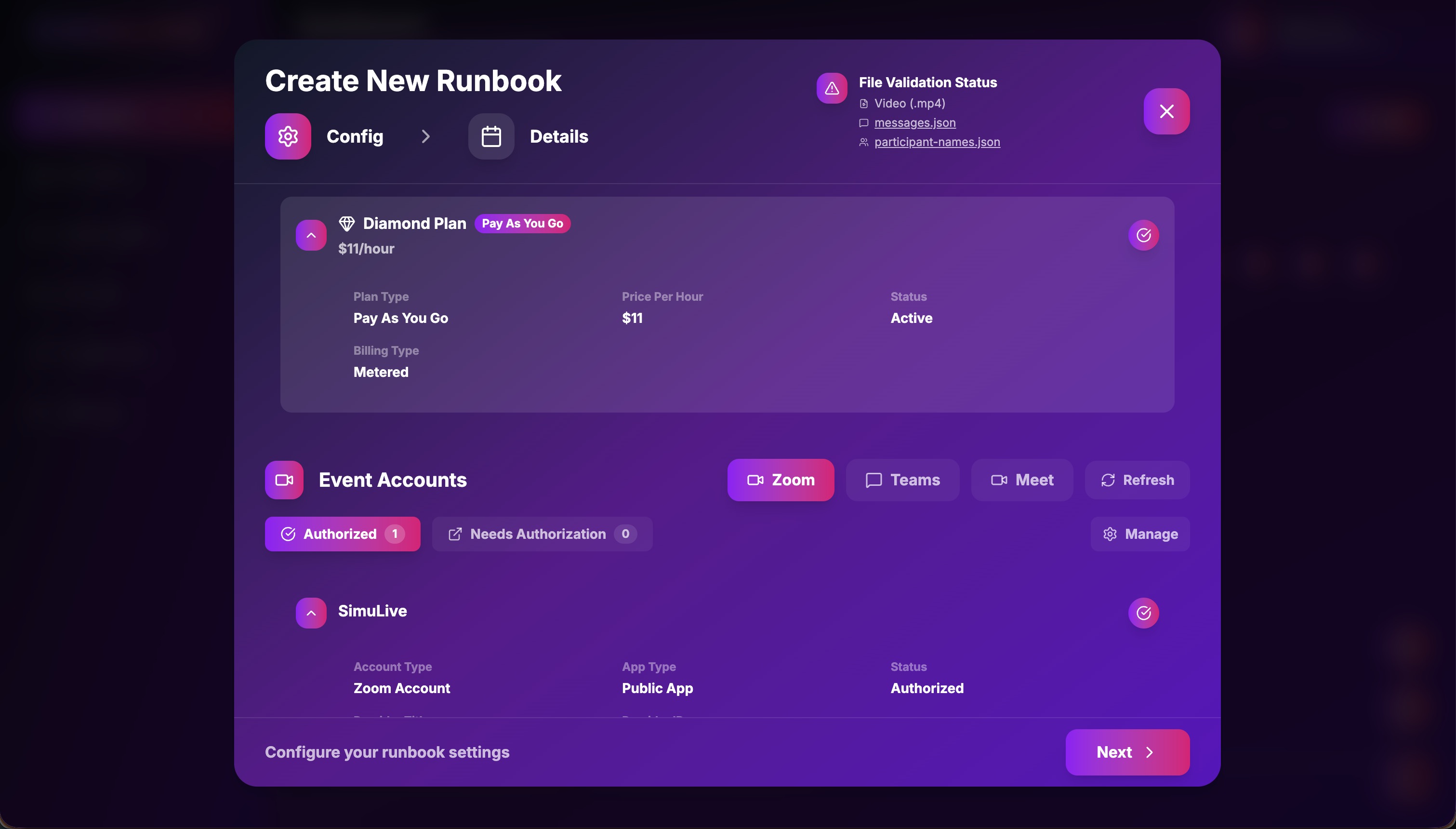
Go to Dashboard → Runbooks. Live streaming is configured per runbook, so pick an existing Zoom or Google Meet runbook, or create a new one first.
Need a runbook first? Follow the Zoom guide or the Google Meet guide, then come back to this page to add live streaming.
Connect Streaming Destinations
Click the Stream icon on your runbook in Dashboard → Runbooks to open the Live Stream modal.
Supported Streaming Destinations
- 1Set stream resolution based on your plan (up to 4K on Diamond)
- 2Add the stream key and RTMP URL for each destination (minimum 10 characters)
- 3Add as many destinations as you need - there is no per-platform fee
- 4Click Save All
Schedule a Streaming Window Inside the Runbook
Live streaming does not have to run for the entire runbook. Inside the Live Stream modal, set a start time and end time relative to the runbook, and SimuLive will automatically start and stop streaming to your destinations at those moments while the runbook keeps running.
- 1Set the runbook duration as usual when creating or editing the runbook
- 2In the Live Stream modal, set the offset for when streaming should begin within that duration
- 3Set the offset for when streaming should end - it can be before, at, or aligned with runbook completion
- 4SimuLive automatically triggers Start and Stop on every connected destination at those scheduled times - no manual intervention required
Go Live
If you prefer to start streaming manually instead of relying on a scheduled window, you can start it yourself once the runbook status is Running.
- 1Open the runbook while it shows the Running status
- 2Start the Source Encoder first and wait for the SOURCE ON badge
- 3Click Start All to go live on every saved destination simultaneously, or start individual platforms one at a time
- 4A LIVE badge appears next to each destination once streaming is confirmed
The Dedicated Live Page and Group Chat
Unlike YouTube, Facebook, Twitch, TikTok, and Custom RTMP, the simulive.us live page needs no setup at all. It is automatically created the moment your runbook is created and goes live the moment the runbook starts Running - there is no stream key, no RTMP URL, and nothing to save.
How to Open Your SimuLive Live Page
- 1Go to Dashboard → Runbooks and click the SimuLive icon on your runbook
- 2The SimuLive Stream modal opens, showing your stream status, Stream URL, and timestamps
- 3Click Copy next to the Stream URL to grab the link, or click Open Stream to be redirected straight to your dedicated live page at simulive.us/live/[runbook-id]
- 4Share that same link with your audience - anyone who opens it can watch and chat, no SimuLive login required
What the Live Page Includes
Roles and Permissions on the Live Page
Roles on the dedicated live page are assigned automatically - there is nothing to configure manually.
Owner / Host
The account that created the runbook is automatically the Owner and Host of the live page, with full chat moderation.
Co-Host
Teammates added to the runbook automatically receive Co-Host access to the live page and its chat.
Participant
Everyone else who opens the live page link is automatically assigned the Participant role, able to watch and chat.
Manage and Monitor Your Streams
Every stream is managed from Dashboard → Runbooks.
Available Actions
View
View stream details
Edit
Modify destinations
Stream
Start or stop streams
Delete
Remove a destination
Live Streaming Features by Plan
Troubleshooting
Live stream not starting
Verify your subscription is active. Check that the stream key and RTMP URL are both entered correctly (minimum 10 characters). Start the Source Encoder first when the runbook is Running, then start destinations.
Streaming window did not trigger automatically
Confirm the scheduled start and end offsets fall inside the runbook duration and that Save All was clicked after entering them in the Live Stream modal.
Stream quality lower than expected
Live stream resolution is capped by your plan: Silver at 720p, Gold at 1080p, Platinum at 1440p, and Diamond at 4K. Upgrade your subscription for higher quality.
Custom RTMP destination not available
Custom RTMP is exclusive to the Diamond plan. Go to Dashboard, then Subscription to upgrade if you need to stream to a custom endpoint.
Dedicated live page shows Initializing or Offline
The live page only goes Live once the runbook status is Running. Open the SimuLive Stream modal from the runbook and click Open Stream again, or use the Retry button on the live page itself once the runbook is Running.
Insufficient credits
Go to Dashboard, then Subscription to purchase additional credits or reduce the event duration.
Need help? Visit simulive.us/support or email support@simulive.us. Platinum and Diamond subscribers receive priority support.
Frequently Asked Questions
More questions?
View All FAQsConclusion
SimuLive turns your automated Zoom or Google Meet runbook into a simultaneous broadcast on YouTube, Facebook, Twitch, TikTok, and Custom RTMP - included in your subscription, with no OBS, no extra streaming fee, and a scheduling window that can start and stop anywhere inside your runbook. Every stream also comes with its own simulive.us live page and group chat, with Owner, Host, Co-Host, and Participant roles assigned automatically.
Haven't created a runbook yet? Start with the Zoom automation guide or the Google Meet automation guide.
Ready to Go Live Across Every Platform?
Stream your automated events to YouTube, Facebook, Twitch, TikTok, and Custom RTMP at no extra cost.